Running giveaways on a WooCommerce site is exciting. You launch a campaign, users buy tickets or participate, and engagement starts growing. However, once the campaign ends, a practical question always comes up:
How do you display winners, countdown timers, lucky wheels, or result lists seamlessly without manually editing pages every time?
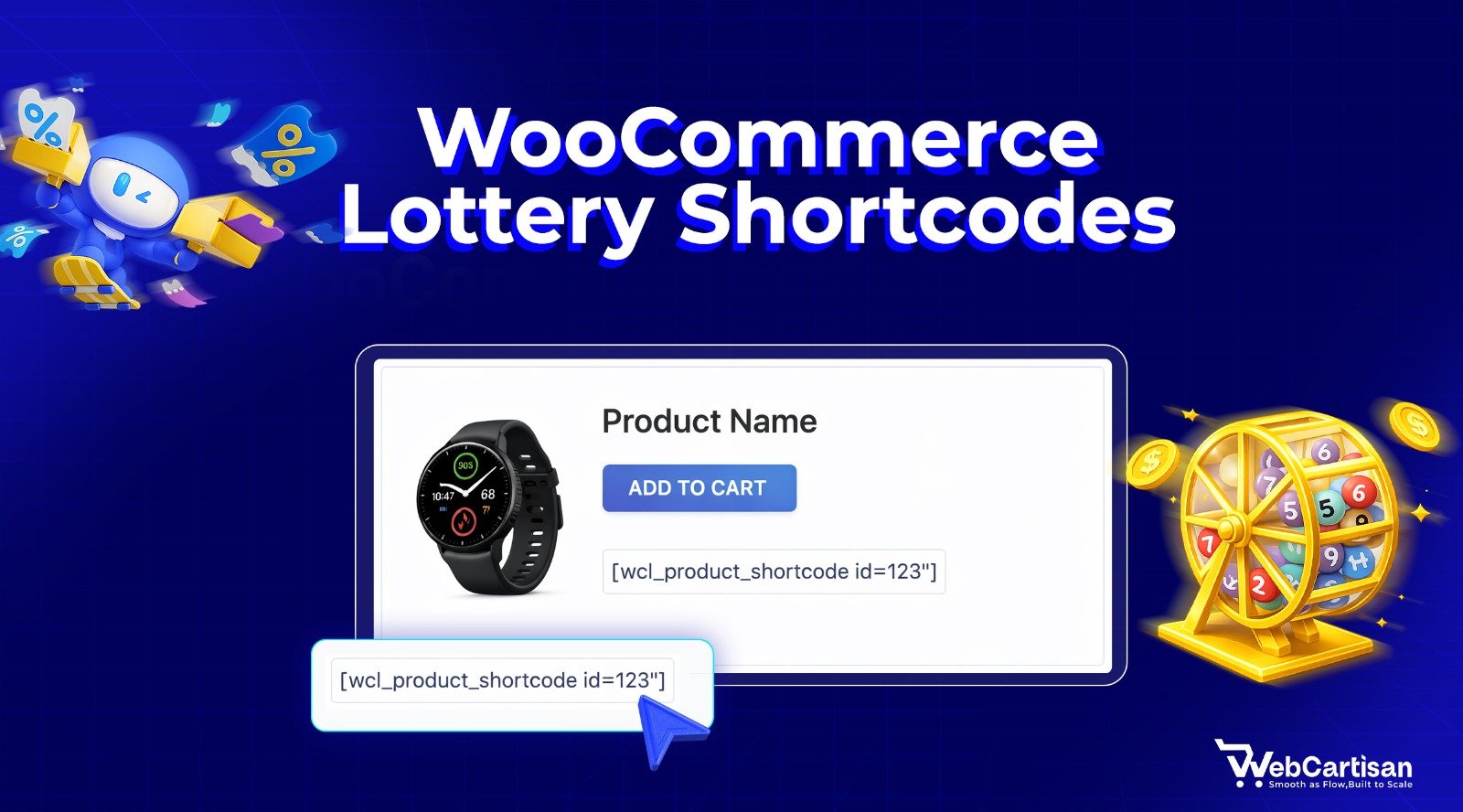
That’s exactly why WooCommerce Lottery Shortcodes exist. You don’t need to create custom templates or redesign layouts.
In this guide, you will learn how each Giveaway Lottery shortcode works, how to configure it, and best practices to get the most out of your giveaways.
What Are Giveaway Lottery Shortcodes?
A shortcode is a small command written inside square brackets that tells WordPress to display something dynamic. When a page loads, WordPress scans the content, locates the shortcode, and replaces it with the plugin-generated data.
For example, instead of manually writing winner information, you can simply use:
[wxg_winner_reveal]Behind the scenes, the plugin fetches the selected winner from your database and renders it on the page automatically.
WooCommerce uses shortcodes extensively for carts, products, checkout pages, and account dashboards. Giveaway plugins extend this system, allowing features like winners, countdowns, and lucky wheels to behave like native WooCommerce elements.
The biggest advantage here is flexibility. You can move shortcodes between pages, redesign layouts, or change themes without breaking functionality. The logic stays inside the plugin, not your theme.
Shortcodes Available in Giveaway Lottery for WooCommerce
Below is the full list of shortcodes available in the plugin:
Shortcode | Purpose |
[wxg_winner_reveal] | Display the selected winner |
[wxgiveaway_winner_list] (Pro) | Show all giveaway winners |
[wxgiveaway_single_product_winner_list product_id="0"] (Pro) | Display winners for one product |
[wxgiveaway_countdown_timer product_id="0"] (Pro) | Show draw countdown |
[wxgiveaway_range_slider product_id="0"] (Pro) | Ticket selection slider |
[wcs_lucky_wheel] | Interactive lucky wheel |
Let’s go through each one in detail and explain how users actually use them.
1. Winner Reveal Page Shortcode
Shortcode:
[wxg_winner_reveal]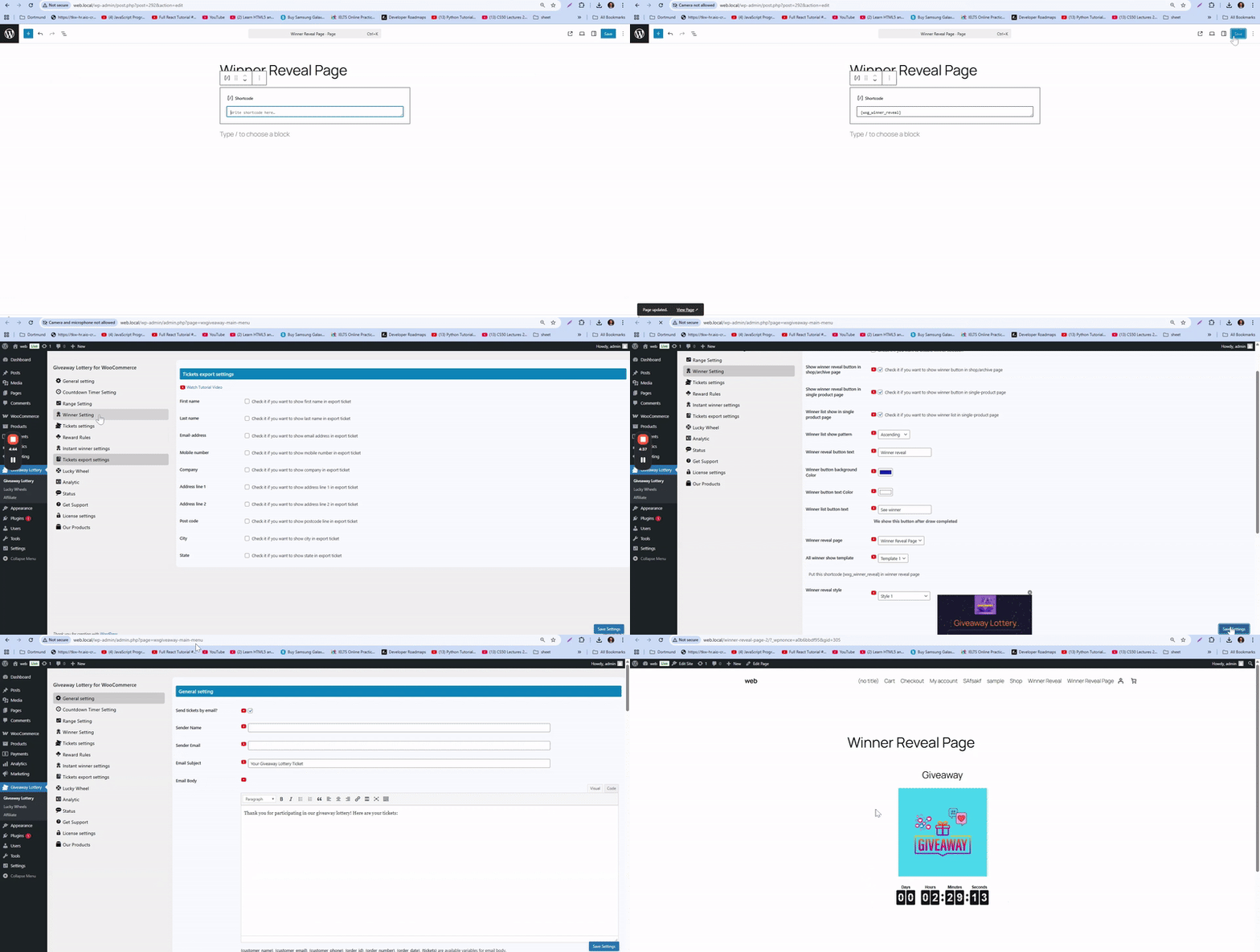
Use this shortcode to display a dedicated Winner Reveal page. Customers click a Winner Reveal button on the shop or product page, which redirects them to this page.
How to Set Up:
- Create a WordPress page (e.g., Winner Reveal or Lucky Winner) and paste the shortcode.
- Go to Winner Settings in the plugin:
- Choose where the Winner Reveal button appears (Shop, Single Product, or both).
- Rename the button if needed.
- Select the Winner Reveal page you just created.
- Choose where the Winner Reveal button appears (Shop, Single Product, or both).
- Save your settings.
User Experience:
- If the giveaway is still running, a countdown timer appears showing when the draw ends.
- Once the giveaway ends, the timer disappears, and the winner’s details are displayed automatically.
2. All Winner List Shortcode (Pro)
Shortcode:
[wxgiveaway_winner_list]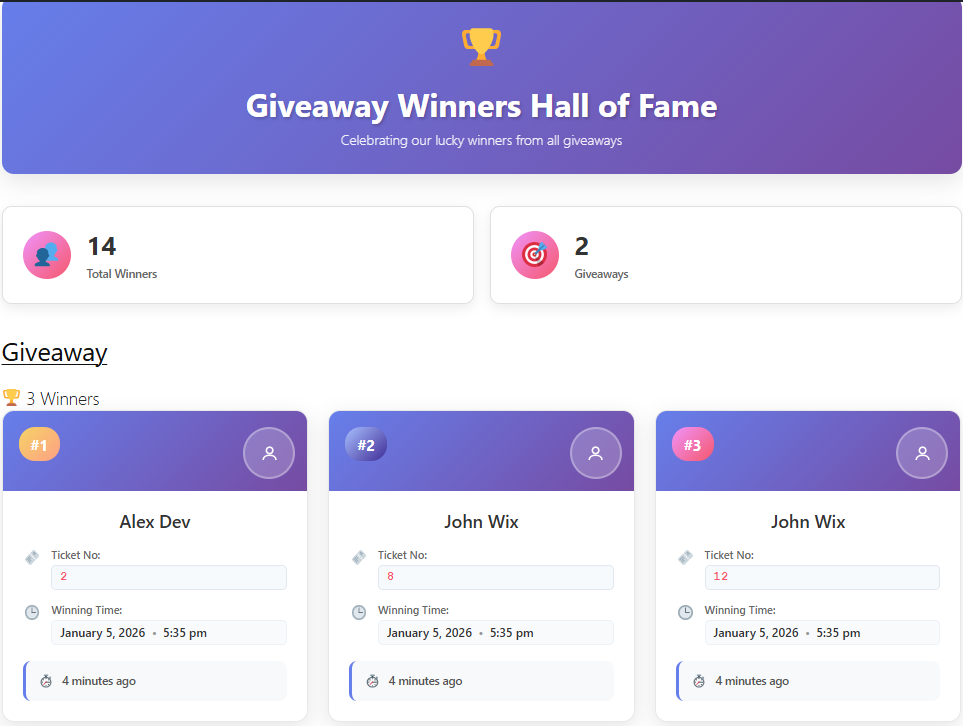
Displays a complete list of winners from all giveaways. Perfect for creating a long-term “Winners” page that builds social proof and encourages participation in future campaigns. It also updates automatically, which is great for SEO.
How to Set Up:
- Create a page and insert the shortcode.
- Publish the page. The plugin automatically displays all winners.
- Optional: To show the winner list on single product pages, go to Winner Settings and enable Winner list show in single product page
3. Specific Product Winner List Shortcode (Pro)
Shortcode
[wxgiveaway_single_product_winner_list product_id="0"]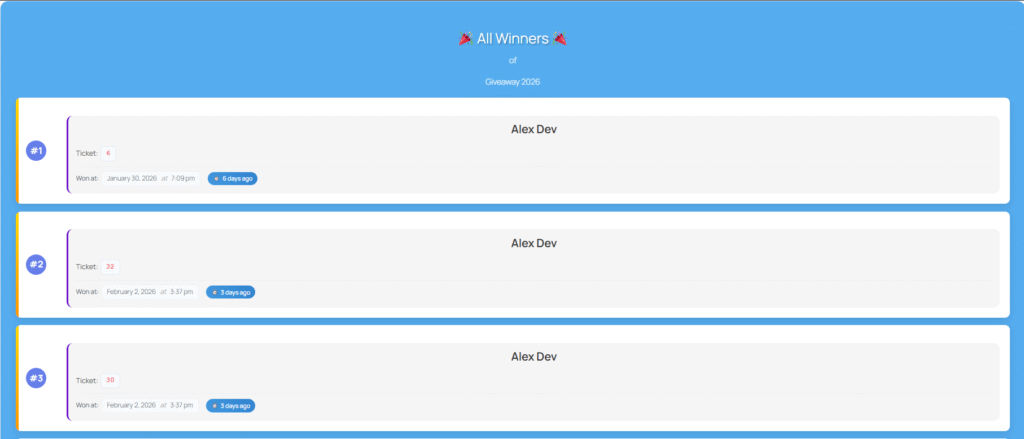
This shortcode shows winners for one specific giveaway product instead of all campaigns.
This is helpful when you run multiple campaigns simultaneously and want each product to have its own result page. For example, a “Holiday Raffle” may have different winners than a “Summer Giveaway.”
How to Set Up:
- Find the product ID in your WordPress Products list.
- Replace 0 with the product ID: [wxgiveaway_single_product_winner_list product_id=”123″]
- Insert it on any page or product tab.
4. Countdown Timer Shortcode (Pro)
Shortcode
[wxgiveaway_countdown_timer product_id="0"]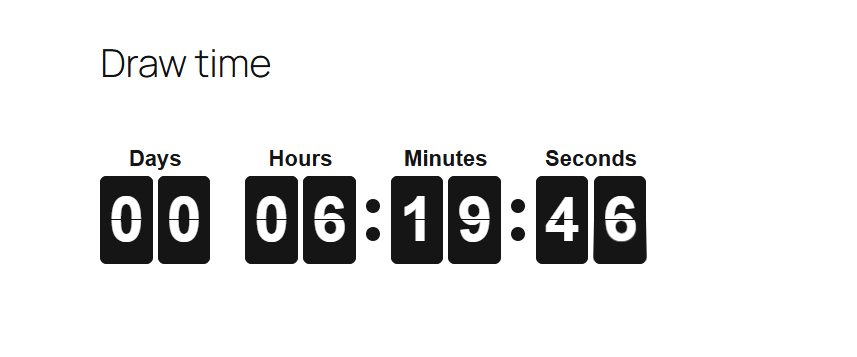
This shortcode displays a live countdown timer until the draw date. Countdown timers are powerful because they create urgency. When users see time running out, they’re more likely to participate. You can place this timer on landing pages, product pages, banners, or promotional sections.
How to Set Up:
- Replace the product ID:[wxgiveaway_countdown_timer product_id=”123″]
- The timer automatically syncs with the product’s draw date.
Site-Wide Countdown:
- To display the countdown on any page, go to Countdown Timer Settings and enable Show Countdown Timer in Site Widget.
- Once enabled, the shortcode works site-wide.
5. Range Slider Shortcode (Pro)
Shortcode
[wxgiveaway_range_slider product_id="0"]
This shortcode displays a visual range slider that helps users understand ticket availability for a giveaway. It shows the total number of tickets allocated and the number already sold.
Instead of guessing availability or entering numbers manually, users can clearly see the remaining tickets and select their entries with greater confidence. This improves the overall user experience and often leads to higher conversions, especially on mobile devices.
How to use it
- Insert: [wxgiveaway_range_slider product_id=”123″]
- Anywhere you want the slider to appear.
6. Lucky Wheel Shortcode
Shortcode
[wcs_lucky_wheel]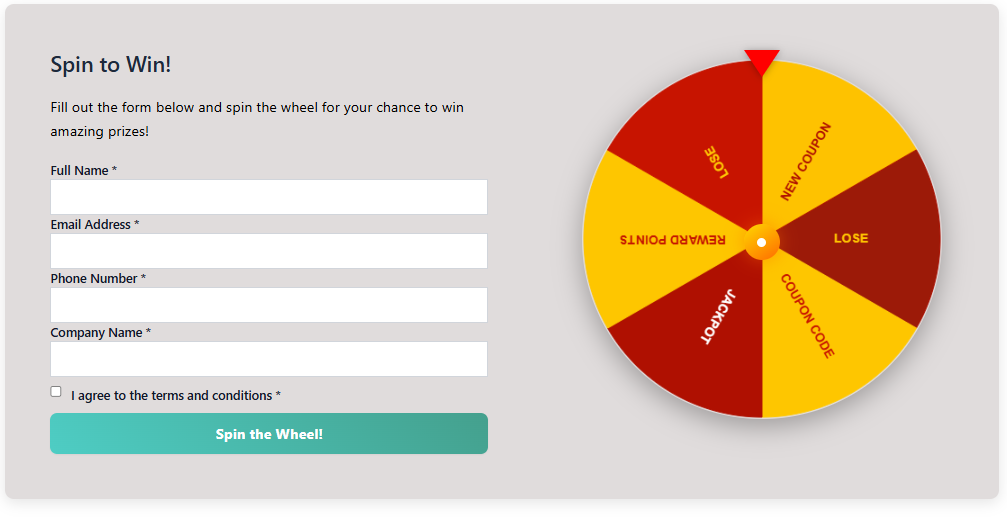
This shortcode displays an interactive lucky wheel that users can spin.
Lucky wheels work extremely well for engagement-focused campaigns such as instant rewards, email capture, and gamified promotions. Users enjoy interactive experiences far more than static forms.
How to use it
- Simply insert: [wcs_lucky_wheel]
- Anywhere you want the lucky wheel to appear.
Conclusion
WooCommerce Lottery Shortcodes allow you to build powerful giveaway systems without complexity. They remove repetitive manual work, reduce errors, and make your campaigns scalable.
Once configured correctly, your giveaway pages practically run themselves.
Frequently Asked Questions
Yes. WooCommerce Lottery Shortcodes are theme-independent. As long as your theme follows standard WordPress and WooCommerce practices, the shortcodes will work without issues. You can switch themes without breaking your giveaway pages.
Yes. You can use multiple shortcodes on the same page. For example, you can show a countdown timer, a range slider, and a winner list together. Just avoid overcrowding the page so users can focus on the main action.
Yes. You can display countdown timers on any page of your site. You just need to enable the Show Countdown Timer in Site Widget option from the Countdown Timer Settings. After that, the shortcode works anywhere.
Yes. The plugin includes an option in Winner Settings that allows you to show the winner list directly on single product pages. Once enabled, the list will appear automatically without adding extra shortcodes.
No. You do not need any coding skills. All shortcodes work by simple copy and paste. The plugin handles the logic and data automatically in the background.
Yes. Once the shortcode is placed, it continues working for future giveaways. Winners, countdowns, and ticket data update automatically based on your campaign settings.
Yes. WooCommerce Lottery Shortcodes work with the WordPress block editor and popular page builders. You can paste them into shortcode blocks, text blocks, or custom HTML blocks.