1. Overview
The All Participants List feature in Giveaway Lottery for WooCommerce allows store owners to display a complete list of campaign participants directly on the single product page.
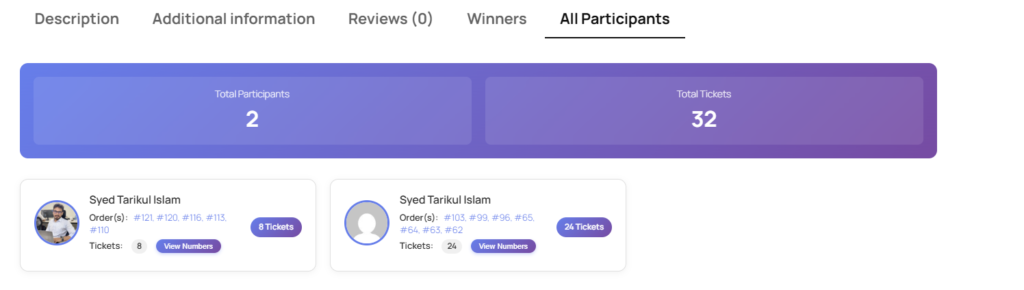
When enabled, a new tab titled “All Participants” appears on the product page. This tab shows all customers who have participated in the giveaway campaign for that specific product.
This feature enhances:
- Transparency
- Trust & credibility
- Social proof
- Customer engagement
2. Feature Activation
Step 1: Enable Giveaway for Product
- Go to WooCommerce → Products
- Edit the giveaway product
- Enable the giveaway option from the product data section
Step 2: Enable “Show All Participants”
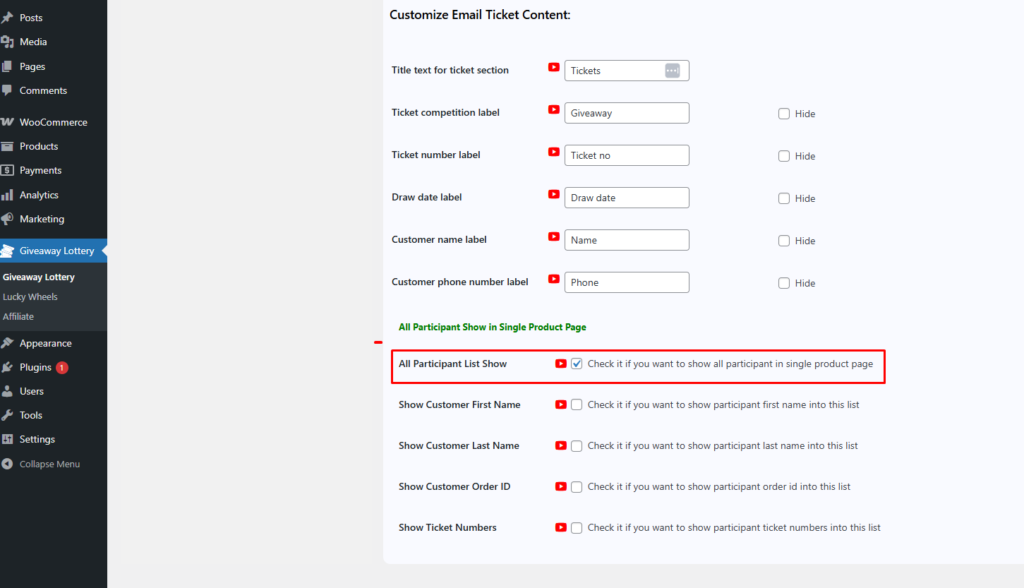
Go to Giveaway Lottery→ Tickets Settings->
- Enable: ✅ All Participant List Show
Once enabled:
- A new product tab titled “All Participants” will automatically appear on the single product page.
3. Frontend Display – All Participants Tab
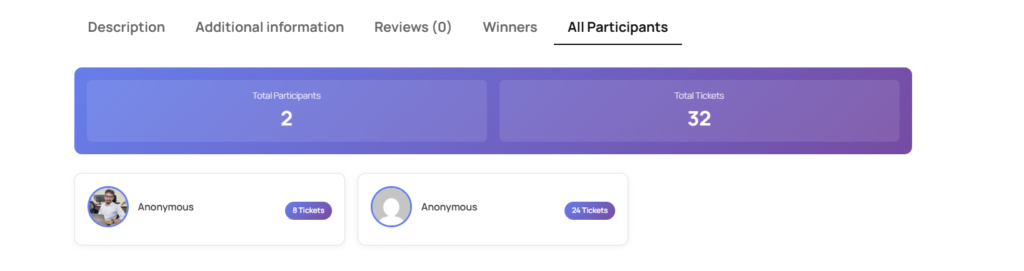
On the single product page, the following tab will be displayed:
All Participants
When clicked, it will show a structured list of all participants for that specific giveaway campaign.
4. Participant Information Displayed
The system fetches participant data based on:
- Billing First Name, Last Name
- Order ID
- Ticket Numbers
Each participant entry may include:
4.1 Participant Profile Information
| Field | Description |
|---|---|
| First Name | From order billing first name |
| Last Name | From order billing last name |
| Gravatar Image | Automatically fetched via billing email |
4.2 Order Information
| Field | Description |
|---|---|
| Order ID | WooCommerce order number |
| Ticket Numbers | Allocated ticket numbers for that order |
| Purchase Quantity | Number of tickets purchased |
5. Gravatar Integration
If a participant’s billing email is associated with a Gravatar account:
- The participant’s Gravatar image will be displayed
- If no Gravatar is available, a default avatar will be shown
This improves the UI and adds authenticity to participant listings.
6. Configurable Display Options (Admin Controls)
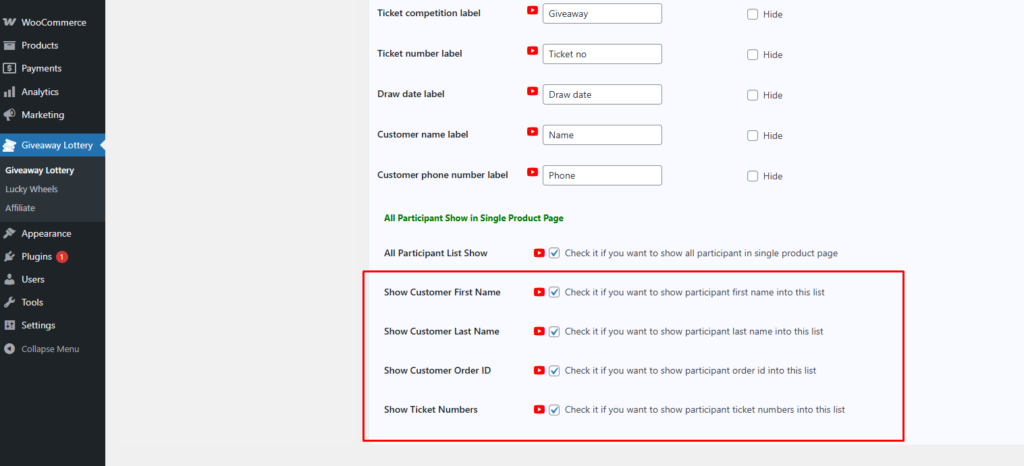
The feature is fully customizable. Store owners can enable or disable specific participant fields.
6.1 Configurable Fields
| Option | Enable/Disable |
|---|---|
| Show First Name | Yes / No |
| Show Last Name | Yes / No |
| Show Order ID | Yes / No |
| Show Ticket Numbers | Yes / No |
This ensures compliance with privacy preferences and business requirements.