1. Overview
The Per-User Ticket Purchase Limit feature in Giveaway Lottery for WooCommerce allows store owners to restrict how many tickets a single customer can purchase for a specific giveaway product.
This ensures:
- Fair participation
- Prevention of ticket monopolization
- Controlled distribution of entries
- Transparent campaign rules
2. Where to Configure the Ticket Limit
Step 1: Edit the Giveaway Product
- Go to WooCommerce → Products
- Edit the specific giveaway product
- Navigate to:
Product Data → Giveaway Settings
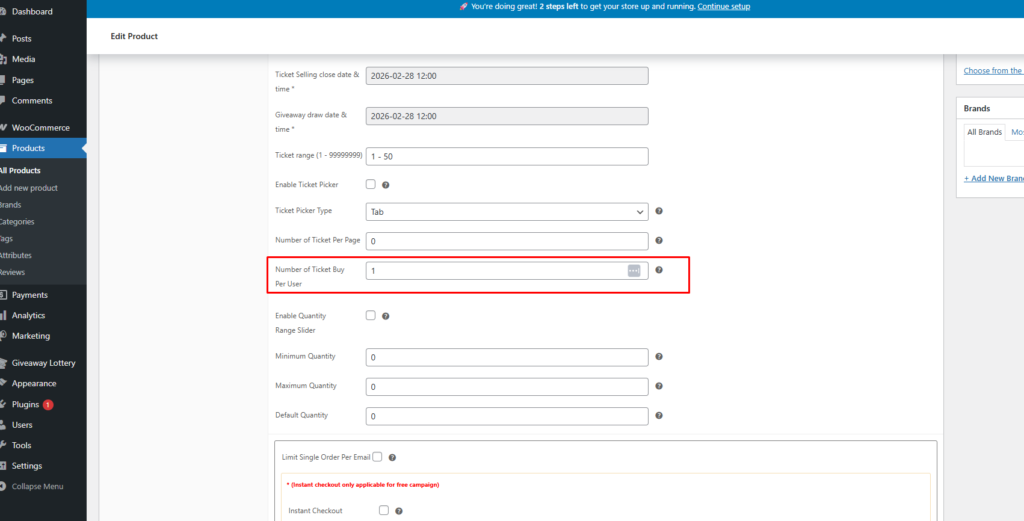
Step 2: Set Ticket Limit Per User
Locate the field:
Number of Ticket Buy Per User
Enter the maximum number of tickets that a single user is allowed to purchase for this product.
Example:
- Set value: 1
- Meaning: A user can purchase only 1 ticket for this giveaway product in total.
3. How the Validation Works
The plugin validates ticket limits during:
- Cart update
- Checkout process (final validation before order placement)
The system calculates:
- Previously purchased tickets by the user
- Current cart ticket quantity
- Maximum allowed ticket quantity
Validation is performed before order completion.
4. Error Message When Limit Is Exceeded
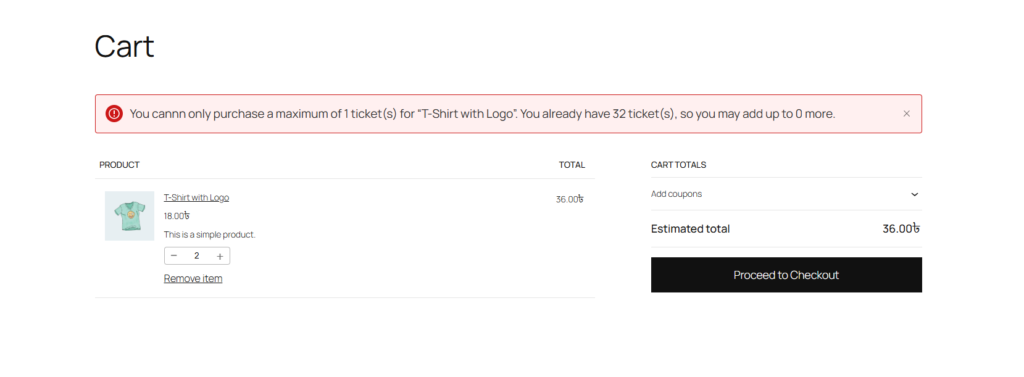
If a user attempts to purchase more tickets than allowed, the system blocks the order and displays a dynamic error message.
Example Error Message
You can only purchase a maximum of 1 ticket(s) for “T-Shirt with Logo”. You already have 32 ticket(s), so you may add up to 0 more.
This message includes:
- Product Name
- Maximum Allowed Tickets
- Already Purchased Tickets
- Remaining Tickets Available
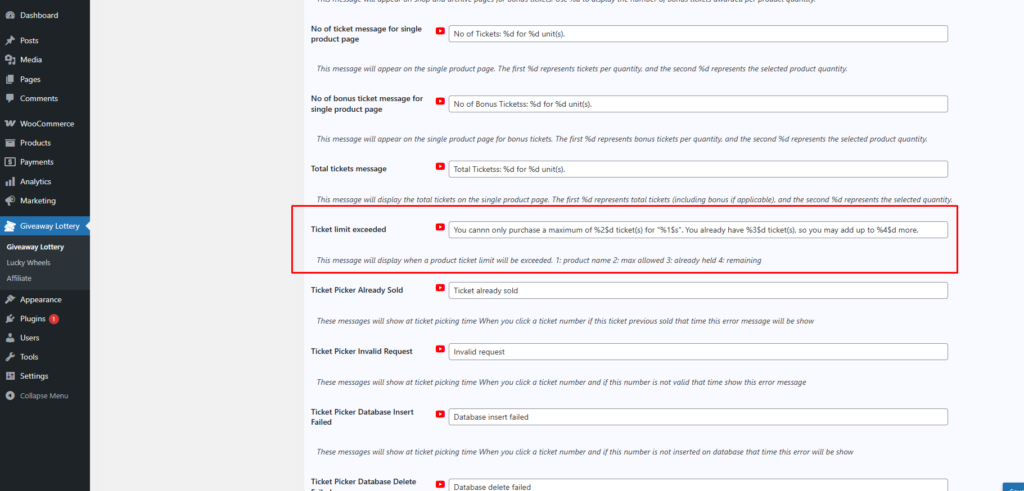
6. Customizing the Error Message
The error message is fully customizable.
Step 1: Go to General Settings
Navigate to:
Giveaway → General Settings
Locate:
Ticket Limit Exceeded