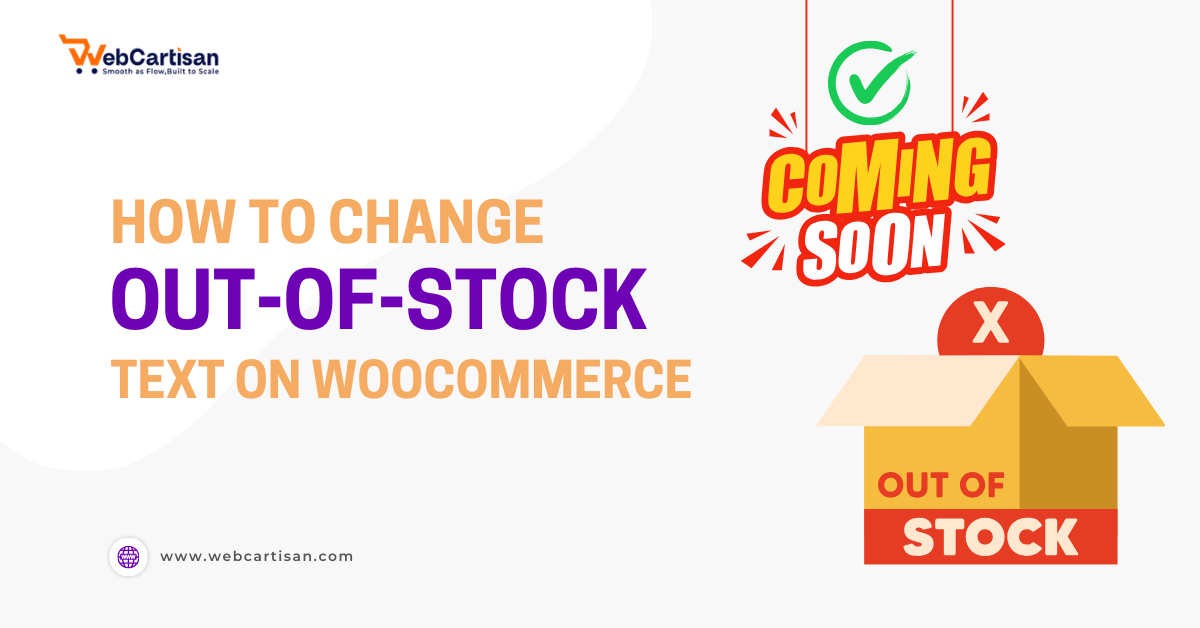
Running a WooCommerce store is a constant balancing act between inventory management and customer experience. One of the most frustrating moments for a shopper is landing on a product page, ready to buy, only to be greeted by a blunt, uninspiring “Out of Stock” message.
It’s a conversion killer. It tells the customer, “Go away, we have nothing for you here.”
WooCommerce doesn’t offer a native, code-free way to change out of stock text in WooCommerce. This specific text string can not be easily changed from the dashboard. Thanks to the WordPress ecosystem, which provides timely solutions.
In this guide, we will focus on using the Single Product Page Customizer with Variation Swatches for WooCommerce plugin. This tool not only allows you to rewrite your stock status messages but also completely revamps your product pages to boost conversions.
Why & When You Need to Change the Out of Stock Text in WooCommerce
Before we dive into the how, it is crucial to understand the why woocommerce change out of stock text is important. The default “Out of Stock” string is functional but lacks emotional intelligence and strategic intent. In the competitive 2026 e-commerce landscape, every micro-copy on your site matters.
Here is why you should customize this text and the scenarios where it is absolutely necessary:
1. Reducing Bounce Rates and Retaining Interest
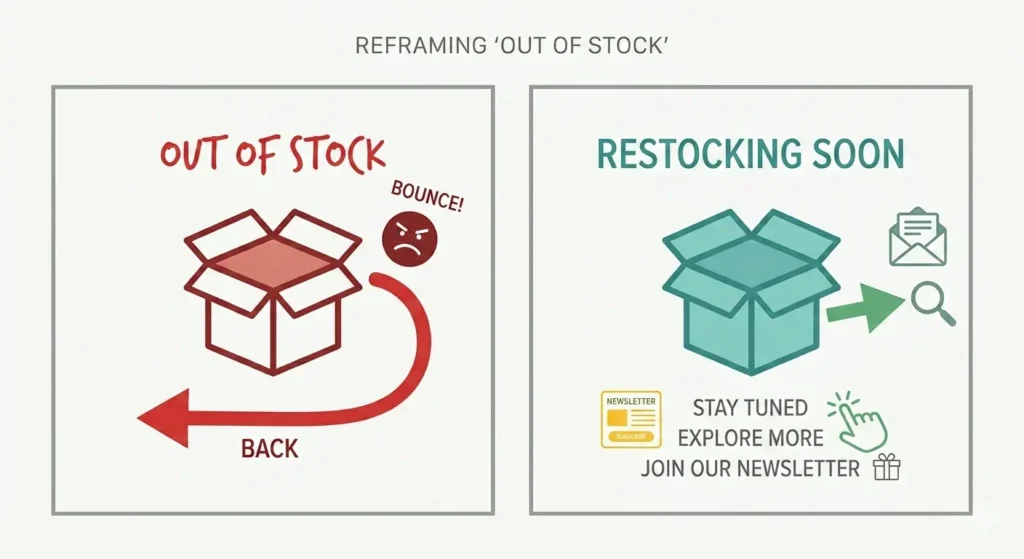
When a customer sees “Out of Stock,” their immediate reaction is to hit the back button and look for the item elsewhere (likely Amazon or a competitor). This increases your bounce rate and loses you a potential sale.
By changing the text to something more proactive, like “Restocking Soon” or “More on the Way,” you signal that this state is temporary.
It encourages the user to stick around, perhaps browse related products, or sign up for a newsletter, rather than abandoning your site entirely.
2. Managing Pre-Orders and Backorders
Technically, a product might have zero inventory in your warehouse, but that doesn’t mean you aren’t accepting orders. If you run a pre-order model, displaying “Out of Stock” is misleading and actively hurts your revenue.
In this case, changing the text to “Pre-Order Now for March Delivery” or “Available for Backorder” is essential. It clarifies that while the item isn’t in their hands today, they can still secure it.
This transparency builds trust and secures cash flow even before you ship the goods.
3. Creating a Sense of Exclusivity
For fashion brands, streetwear, or limited-edition collectibles, “Out of Stock” sounds like a supply chain failure. However, “Sold Out” sounds like a massive success. It implies that the product was hot, everyone wanted it, and you missed out.
Changing the text to “Sold Out” or “All Gone!” creates social proof. It subtly tells the customer, “You need to be faster next time.” This fear of missing out (FOMO) can actually increase engagement for future product launches.
4. Communicating Discontinued Items
Sometimes, a product is gone for good. Leaving a generic “Out of Stock” message leaves customers hanging, wondering whether to check back later. If an item is discontinued, you should explicitly state “Discontinued – Check Out Newer Models” or “Sold Out Forever.”
This directs the user’s attention away from the dead product and toward available alternatives, keeping the shopping journey alive.
5. Aligning with Brand Voice
Your brand voice shouldn’t stop at your homepage. If you are a quirky, fun brand, a sterile “Out of Stock” message feels out of place. You might want to change it to something like “Whoops! The elves are making more,” or “Catnapped! Back soon.”
Consistency in tone helps build a stronger connection with your audience.
6. B2B and Wholesale Implications
For B2B stores, inventory works differently. You might want to encourage bulk inquiries even if the stock is low. Changing the text to “Call for Availability” or “Contact for Bulk Orders” shifts the interaction from a transactional failure to a relational opportunity.
How to Change the Out of Stock Text in WooCommerce
Now that we understand the strategy, let’s get into the execution. We will be using the Single Product Page Customizer with Variation Swatches for WooCommerce plugin by WebCartisan.
This plugin is chosen because it offers a user-friendly interface for text customization without requiring you to edit your theme’s functions.php file, which can be risky for beginners.
How to Change Out-of-Stock Text in WooCommerce
- Install and Activate the Plugin
-Go to the WordPress admin URL & log in to your WordPress Dashboard.
-Navigate to Plugins > Add New.
-In the search bar, type: Single Product Page Customizer with Variation Swatches for WooCommerce.
-Look for the plugin developed by WebCartisan.
-Click Install Now.
-Once installed, click Activate. - Access the Plugin Settings
-On your WordPress Dashboard sidebar, hover over WooCommerce.
-Click on Settings.
-Look for the new tab labeled Single Product Customizer. (Note: In some versions or specific setups, this might appear as a standalone menu item named “Product Customizer” or similar in the main sidebar, but standard integration usually places it within WooCommerce Settings or under the Appearance menu.)
-Click on the Single Product Customizer tab/menu to open the plugin dashboard. - Navigate to Text & Label Customization
The plugin is divided into different sections (Basic Settings, Advanced Settings, etc.). The text-changing features are typically found in the “Basic” or “Text” configuration area.
-Ensure you are on the Basic Settings or Text & Label Customization tab.
-Scroll down until you find the section specifically labeled Change Out of Stock Text. - Enter Your Custom Out of Stock Text
This is where the magic happens. You will see an input field next to the “Out of Stock Text” label.
-Enable the Feature: There may be a checkbox or toggle to “Enable” text customization. Make sure this is switched on.
-Input New Text: Delete the default placeholder (if any) and type your desired text.
-Examples: “Restocking Soon”, “Sold Out”, “Check Back Later”, “Currently Unavailable”.
-Visual Check: Some versions of the plugin may offer a live preview, but in general, you will only see the text field. - Save Changes
-Scroll to the bottom of the settings page.
-Click the Save Changes button. - Verify the change on the Frontend
-Never assume it worked without checking!
-Open a new browser tab or an Incognito window.
-Navigate to a product on your store that you know is out of stock.
-Tip: If you don’t have one, quick-edit a product in your “All Products” list and set the stock quantity to 0 to test it.
-Verify that your new text (e.g., “Restocking Soon”) is displayed instead of the default “Out of Stock.”
Troubleshooting Tips:
- Caching: If you don’t see the change immediately, clear your site cache (via WP Rocket, Autoptimize, or your host) and your browser cache.
- Theme Conflict: In rare cases, some themes hardcode the “Out of Stock” badge. If the plugin doesn’t work, try switching to a default theme (like Storefront) temporarily to see if the theme is the issue.
- Variable Products: Check a variable product as well. Specific variations that are out of stock should also reflect this text change if the plugin supports variation-level text logic (which this plugin specializes in).
Pricing and Features for Single Product Customizer WooCommerce Plugin
While changing the “Out of Stock” text is a powerful first step, the Single Product Page Customizer with Variation Swatches for WooCommerce is designed to be a comprehensive toolkit for your product pages.
It goes beyond simple text edits to offer a complete overhaul of your store’s user experience (UX).
| Plan | Price | Includes |
| Basic | Free/Year | Basic Features for 1 Site Enable Plus-Minus Buttons, Change “Add to Cart” Button Text, Hide Add to Cart Button, Sale Badge Text, Change Out of Stock Text, Change On Backorder Text, Change Remove Related Product Section, Hide Price, Hide Short Description, Custom Message, Show Variation Table, Show Variation Swatches for WooCommerce, Customize Related Product Title, Variation Reset Text Change, Customize Upsell Products Title, Disable Product Ratings and Reviews |
| Pro | $29/Year | Basic Features+10 Pro Features for 1 Site Enable Min/Max Quantity Limits, Enable Ajax Add to Cart Button, Custom Tab Attach, Additional Content Attach, WooCommerce Default Tab Label Change, Related Product Categories Grid, Move Image Section to Right Side, Category-Based Customization, Product-Based Customization, Enable Category-Based Customization |
Make sure you have WordPress 6.9 or a newer version installed before using this plugin.
FAQs
A: No, changing the text label does not hurt SEO. In fact, it might help if you’re running an SEO campaign on your store. Using text like “Restocking Soon” instead of leaving a page looking dead, you might reduce the bounce rate, which is a positive signal to Google.
A: Generally, yes. The Single Product Page Customizer hooks into standard WooCommerce actions. However, if you are using a custom Elementor Single Product Template, the builder might override standard WooCommerce hooks.
A: The basic “Out of Stock Text Change” setting is global… it applies to the whole store. The Pro version or more advanced category-based settings might allow for greater granularity, but this specific setting typically changes the text site-wide. If you need product-specific stock messages, you might need a more complex inventory management plugin.
A: The plugin is advertised as lightweight. Since it primarily uses CSS and simple PHP hooks to change text strings and hide elements, the performance impact is negligible. Features like “Ajax Add to Cart” in the Pro version can actually make the site feel faster to users by preventing page reloads.
A: If you deactivate the plugin, all your text changes (like “Restocking Soon”) will revert to the default WooCommerce “Out of Stock” text. Your inventory numbers will not be affected; only the display label will change back.
Bottom Line
In 2026, the default WooCommerce experience is just a starting point. To build a brand that resonates with customers and retains sales, customization is key. The “Out of Stock” message is often an afterthought, but it represents a critical touchpoint in the customer journey.
It is the difference between a closed door and a “be right back” sign.
The Single Product Page Customizer with Variation Swatches for WooCommerce makes this customization accessible to everyone. You don’t need to be a developer to take control of your product page messaging.
By following the steps above, you can turn your out-of-stock pages from dead ends into opportunities for engagement, clarity, and brand consistency.