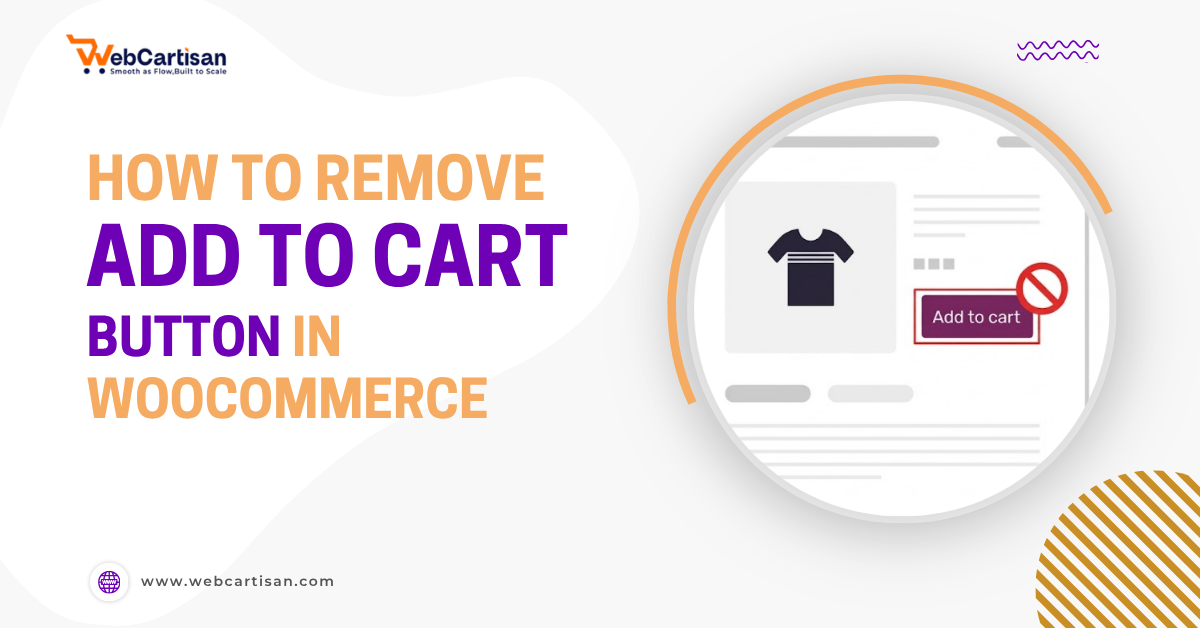
WooCommerce is designed out of the box to do one thing very well: sell products immediately. The entire ecosystem revolves around the Add-to-Cart button since it pushes customers toward the checkout flow.
However, not every business model fits this standard e-commerce mold.
Sometimes, the ultimate goal of your website isn’t to capture a transaction instantly. Sometimes, the owner might want to generate a lead, showcase a catalogue, or encourage a phone call.
In that case, you’ll need to use third-party plugins to remove that button. And for that, this guide will teach you how to hide the add to cart button in WooCommerce.
Let’s begin.
Why & When Should You Remove Add to Cart Button in WooCommerce?
At first, removing the primary call to action (CTA) from an e-commerce site might seem counterintuitive. However, for many businesses, an immediate “Add to Cart” button isn’t really a useful feature.
As a matter of fact, its presence can actually create friction rather than facilitate sales.
When a customer lands on a page, a generic “Buy Now” button can feel premature or impersonal.
By removing this button, you pause the user journey. Thus encouraging potential clients to engage with your content or reach out to your sales team directly.
This shift changes the psychological framing of your store from a quick-stop vending machine to a premium showroom.
It also prevents the logistical nightmare of customers paying for items that require complex shipping calculations or stock verification.
Furthermore, curating the purchasing path enables you to qualify leads more effectively. Thus, ensuring that only serious buyers proceed to the negotiation or payment stage.
In essence, hiding the button is often less about stopping a sale and more about starting a conversation.
Here are the most common scenarios where removing the button is the right strategic move:
- B2B and Wholesale Stores: In a wholesale environment, pricing is often tiered by volume, client history, or contracts. So a “one price fits all” button doesn’t work. You likely want to restrict purchasing capabilities to approved accounts only, preventing general retail traffic from seeing wholesale prices. Or placing orders without proper verification.
- Products Requiring Quotes: For items like bespoke furniture, custom-tailored suits, or industrial machinery, the final price often depends on specific configurations and measurements. Removing the standard purchase button forces the customer to initiate a consultation, ensuring that all technical details are agreed upon before any money changes hands.
- Catalogue Mode: Many businesses operate primarily as brick-and-mortar stores and use their websites solely as digital showrooms to display available inventory. In this mode, the goal is to drive foot traffic to the physical location rather than manage the complexities of online payment gateways, shipping logistics, and returns.
- Out of Stock / Coming Soon: If you are launching a new product line, you might want to build hype and anticipation before the inventory is actually available for shipment. Hiding the purchase button while keeping the product page visible lets you collect emails for a waitlist or “notify me” feature, rather than frustrating users with a checkout process that leads to a backorder.
Ultimately, removing the ‘Add to Cart’ button lets you transform your site from a simple transactional store into the strategic catalogue your business actually needs.
How to Remove Add to Cart Button in WooCommerce
While you can write custom PHP code to remove buttons, that approach is risky if you aren’t a developer or don’t know what you’re doing. The safest and fastest method is to use a reliable third-party plugin, such as the Single Product Page Customizer for WooCommerce.
This tool handles the heavy lifting in the background, ensuring compatibility with the latest WordPress versions without you ever touching a line of code. It also provides a user-friendly interface for ease of use.
And the best part is, this option is completely free to use for as long as you wanna use it.
Here’s how to hide the Add to Cart button in WooCommerce using this plugin:
- Install the Plugin
First, you need to go to your WordPress dashboard. Then:
Navigate to Plugins > Add New.
Search for the Single Product Page Customizer with Variation Swatches for WooCommerce plugin.
Click Install Now once you’ve found the plugin. Then activate it. - Access the Configuration Menu
Unlike many plugins that hide their settings in obscure sub-menus, this plugin integrates directly into your WooCommerce settings.
Navigate to WooCommerce > Settings in your dashboard sidebar.
Look for the new tab labelled Single Product Customizer. - Enable the “Hide Add to Cart” Feature
Since it’s a free feature, this option will be in the Basic Settings section.
Scroll down until you see the option labelled as Hide “Add to Cart” Button.
Check the box next to this option to enable it.
Pro Tip: While you are here, if you are creating a catalogue, you might also want to check the “Hide Price” option from the same settings panel. - Save Changes
Scroll to the bottom of the page and click Save Changes. And voila! The “Add to Cart” button will now be removed from your single product pages.
You can also refer to the plugin’s documentation page if you ever encounter any difficulties or technical issues.
Pricing and Plans for WooCommerce Single Product Customizer Plugin
Although it’s free to use, this single-product customizer plugin also offers a Pro version with additional, useful features.
For many startups or simple catalogue sites, the Free version provides more than enough utility to manage basic visibility settings, such as hiding prices or buttons.
However, as your store grows, you may find you need deeper customization, such as category-based rules or dynamic content restrictions, which are exclusive to the Pro tier.
Here’s a complete breakdown of pricing and features of this plugin:
| Plan | Price | Includes |
| Basic | Free/Year | Basic Features for 1 Site, Customer Support Basic Features: Enable Plus, Minus Buttons, Change “Add to Cart” Button Text, Hide Add to Cart Button, Sale Badge Text Change, Out of Stock Text Change, On Backorder Text Change, Remove Related Product Section, Hide Price, Hide Short Description, Custom Message Show, Variation Table Show, Variation Swatches for WooCommerce, Customize Related Product Title, Variation Reset Text Change, Customize Upsell Products Title, Disable Product Ratings and Reviews |
| Pro | $29/Year | Basic Features+10 Pro Features for 1 Site, Customer Support Pro Features: Enable Min/Max Quantity Limits, Enable Ajax Add to Cart Button, Custom Tab Attach, Additional Content Attach, WooCommerce Default Tab Label Change, Related Product Categories Grid, Move Image Section to the Right Side, Category-Based Customization, Product-Based Customization, Enable Category-Based Customization |
Ultimately, the choice between Free and Pro depends on whether you need a broad, site-wide rule or granular control over specific product categories and layouts.
Frequently Asked Questions
A: Yes. The plugin is designed to handle single product pages comprehensively, including variable products. In fact, this plugin specialises in variation swatches, so it handles complex product types very well.
A: Yes. In the same Basic Settings menu, there is an option named Change ‘Add to Cart’ Button Text. If you prefer to keep the button but label it something like ‘Request Quote’ (linking to a form), you can easily customize that text.
A: No. This setting specifically targets the single product page. It does not break your checkout functionality.
A: Absolutely. The plugin works on a toggle system. If you decide to revert your catalogue site back to a transactional store, you simply uncheck the “Hide Add to Cart Button” box in the settings and save. The buttons will reappear instantly, leaving no code debris behind.
A: Generally, yes. The plugin uses standard WooCommerce hooks, which means it is compatible with the vast majority of themes (like Astra, OceanWP, or Storefront). However, if you are using a heavily customized theme that overrides WooCommerce’s default templates, you may need to check with the theme developer.
Bottom Line
Learning how to remove add to cart button in WooCommerce is vital for tailoring your store to B2B or catalogue-only needs.
By taking control of the purchasing flow, you protect your inventory management and create a more curated experience for high-value clients. This small adjustment can lead to higher-quality leads and fewer administrative headaches regarding pricing disputes or out-of-stock orders.
And this WooCommerce plugin makes this process incredibly simple.