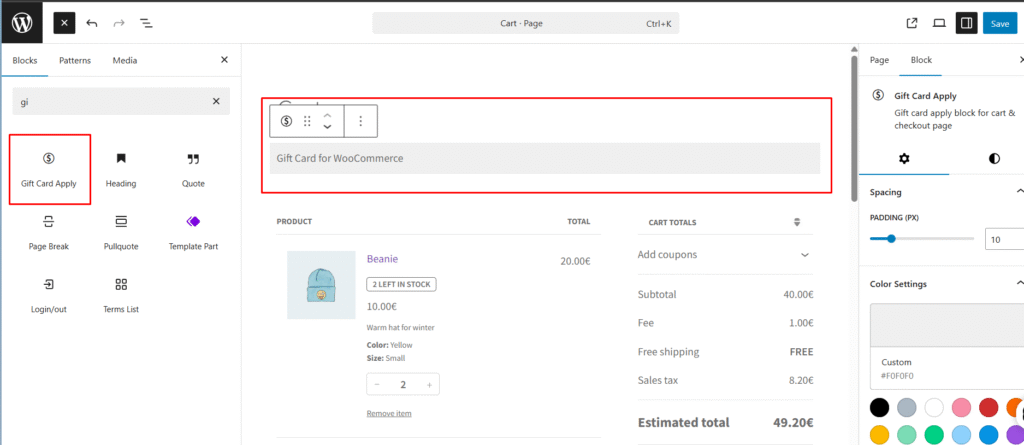
The Apply Giftcards Code block allows customers to redeem their gift card codes directly on the Cart or Checkout page. Once applied, the gift card balance is validated, and the discount is applied to the order total.
🎯 Block Details
- Block Name:
Gift Card Apply - Icon: 💰
money-alt - Description: Gift card apply block for cart & checkout page.
🚀 Features
- Input field for customers to enter their gift card code.
- Button to apply the code and update totals instantly.
- Works with both Cart and Checkout pages.
- Customizable padding and background color in block settings.
- Secure validation of gift card codes via AJAX.
- Integrated with WooCommerce totals to adjust discounts automatically.
🛠️ How to Use
- Add the Block
- In the WordPress editor, search for “Gift Card Apply”.
- Insert it into your Cart or Checkout page.
- Customize Settings
- Adjust padding and background color from the block sidebar.
- Save & Publish
- Once placed, the block will appear on the front end.
- Customer Interaction
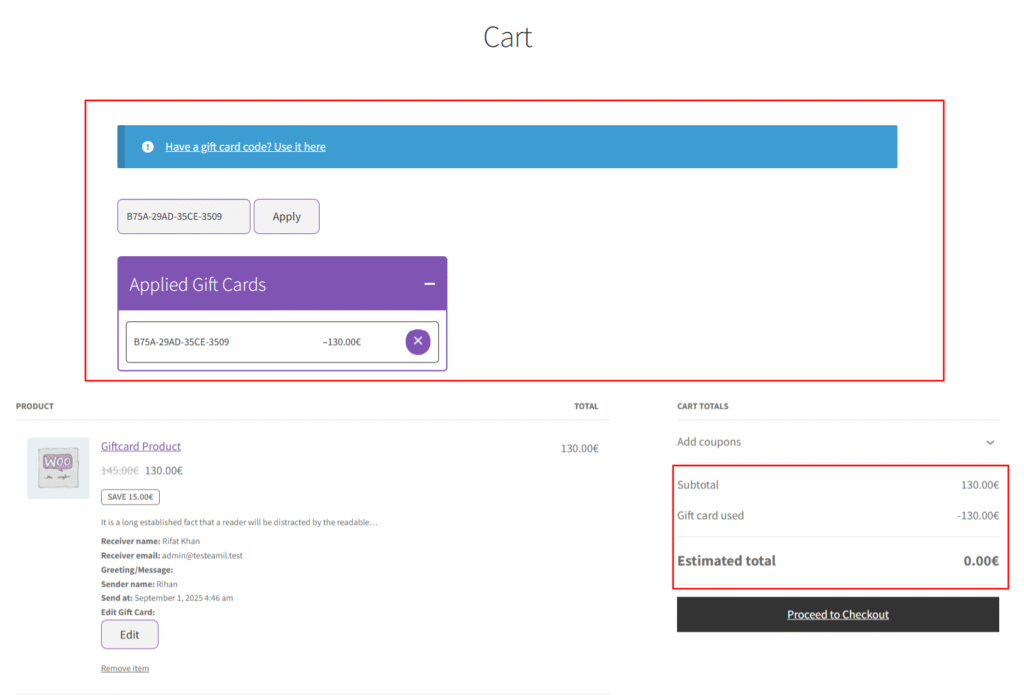
- Customers enter their gift card code.
- Click Apply Gift Card.
- The system validates the code and updates the cart/checkout totals.
🖼️ Example Preview
Frontend Output Example:
[ Gift Card Code Input Field ] [ Apply Button ]
-----------------------------------------------
Cart Total: $100
Gift Card Applied: -$25
New Total: $75
🔌 Technical Notes
- Render: Handled via
render.phpto ensure compatibility with WooCommerce cart/checkout templates. - AJAX Handling: Uses
view.jsfor frontend validation & applying the gift card. - Styling: Controlled via
style-index.css. - Editor Styles: Controlled via
index.cssfor a live preview in block editor.
🎯 Shortcode Details
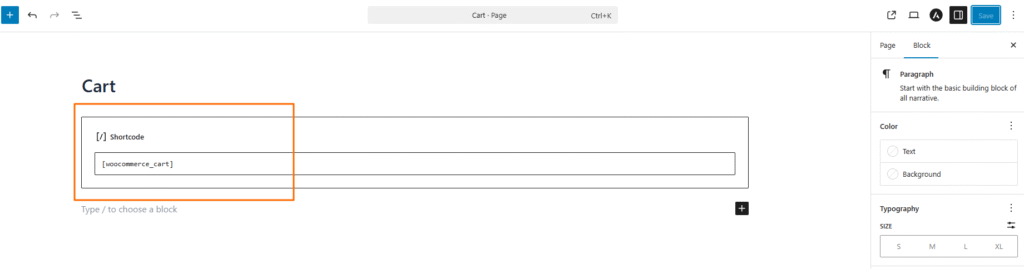
- Name: WooCommerce Cart
- Icon: 🛒
- Shortcode:
[ woocommerce_cart ] - Description: Displays the full cart page including products, quantities, totals & coupon field.
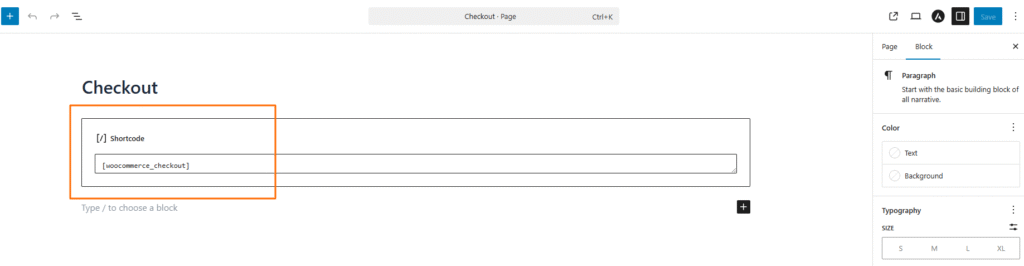
- Name: WooCommerce Checkout
- Icon: 🧾
- Shortcode:
[ woocommerce_checkout ] - Description: Displays the full WooCommerce checkout form with billing, shipping & payment options.
🚀 Features
- Shows full WooCommerce cart/checkout UI using default shortcodes.
- Fully compatible with all WooCommerce themes.
- Supports coupon application & live total updates.
- Checkout includes all billing, shipping & payment fields.
- Automatic integration with WooCommerce totals & orders.
- Works instantly — just paste the shortcode into any Classic Editor page.
🛠️ How to Use
Add the Shortcode (Classic Editor)
Go to Pages → Cart / Checkout → Edit
In Classic Editor, paste:
Cart Page:
[woocommerce_cart]Checkout Page:
[woocommerce_checkout]Save & Publish
After saving, the cart/checkout system will automatically appear on the frontend.
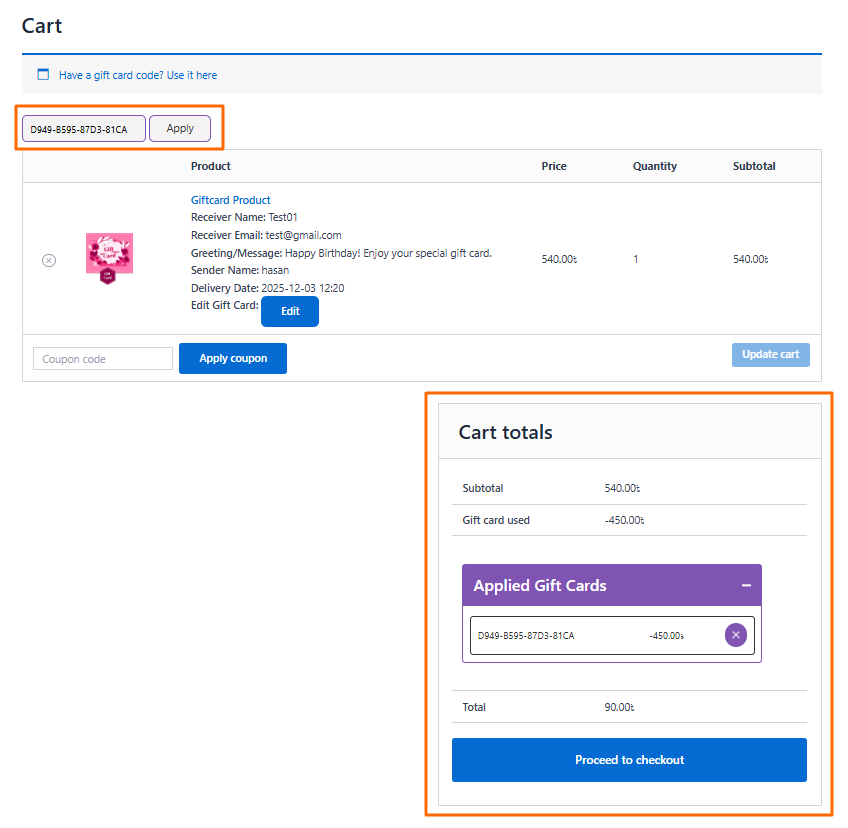
🛒 Customer Interaction — Cart
- Customers see all products in their cart
- Can update quantity
- Can remove items
- Can apply coupon codes
- Totals update instantly
🧾 Customer Interaction — Checkout
- Customers fill billing & shipping info
- Select payment method
- Review order
- Click Place Order
🖼️ Example Output
Cart Example:
Subtotal: $130
Coupon Applied: -$10
Total: $120
Checkout Example:
Billing Details
Shipping Details
Order Summary
Payment Options
🔌 Technical Notes
- Cart loads using WooCommerce template system.
- Checkout uses built-in WooCommerce checkout renderer.
- No custom code required — shortcodes handle everything.
- Styling controlled by your theme + WooCommerce CSS.