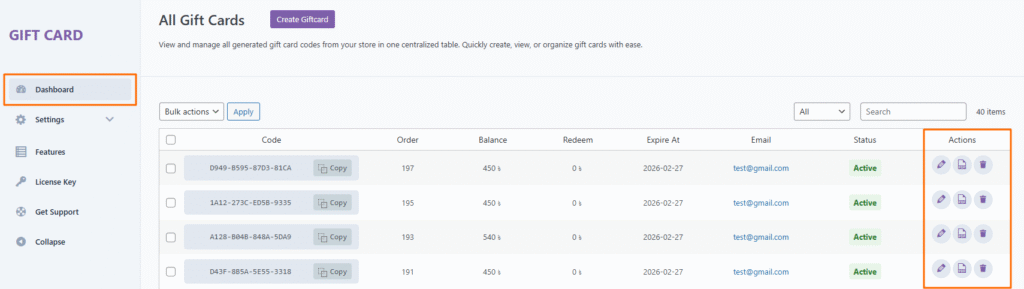
The Actions column in the Gift Card Dashboard provides a set of quick management tools that allow you to take control of each gift card entry without leaving the page.
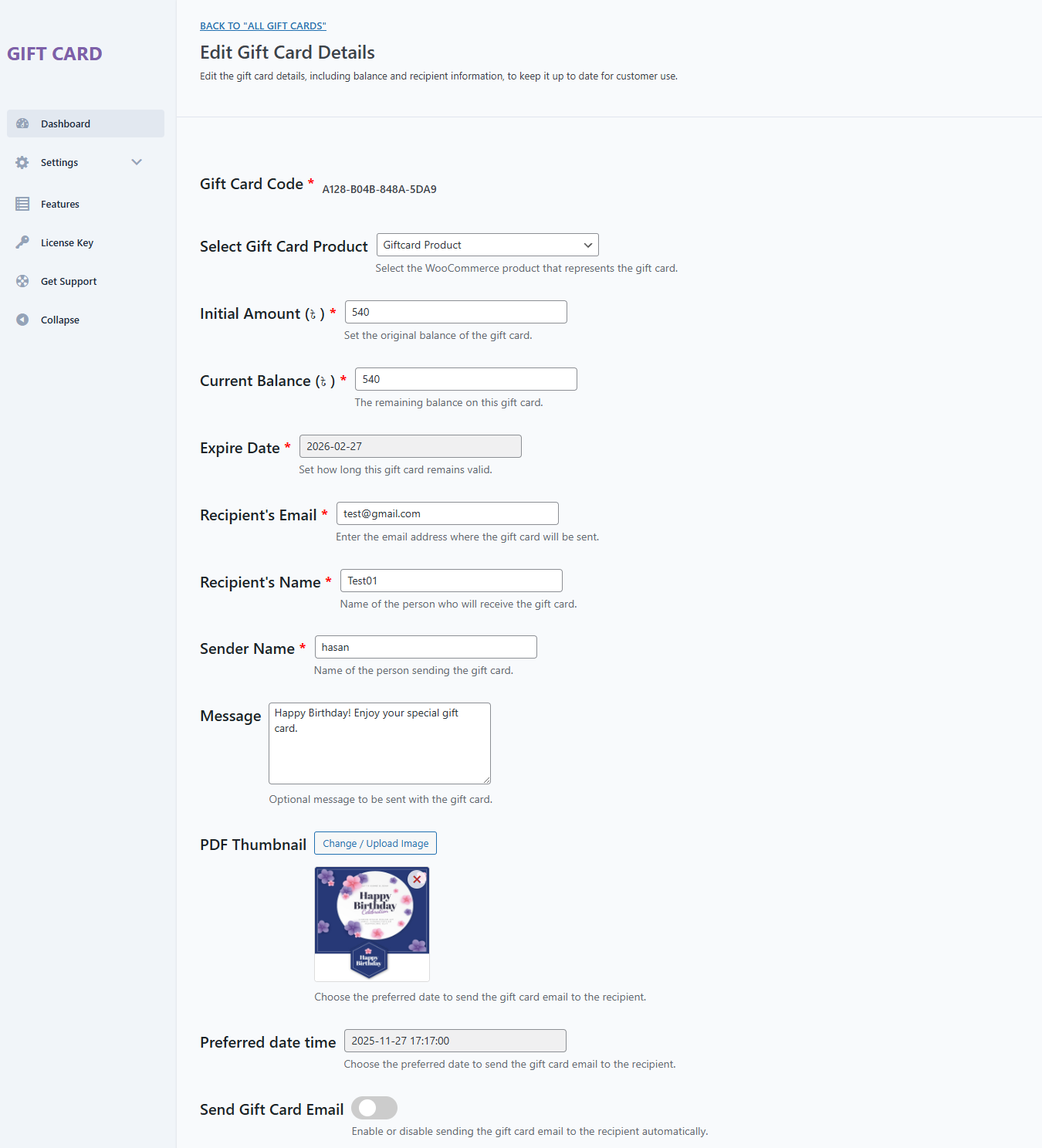
Click the Edit icon to modify the details of an existing gift card. You can update fields such as:
- Gift Card Code
- Select Gift Card Product
- Initial Amount (৳ )
- Current Balance (৳ )
- Expiration date
- Recipient email address
- Recipient’s name
- Sender name
- Message
- PDF Thumbnail
- Preferred date time
- Send Gift Card Email
This is especially useful if you need to correct mistakes or make manual adjustments.
🗑️ Delete Gift Card
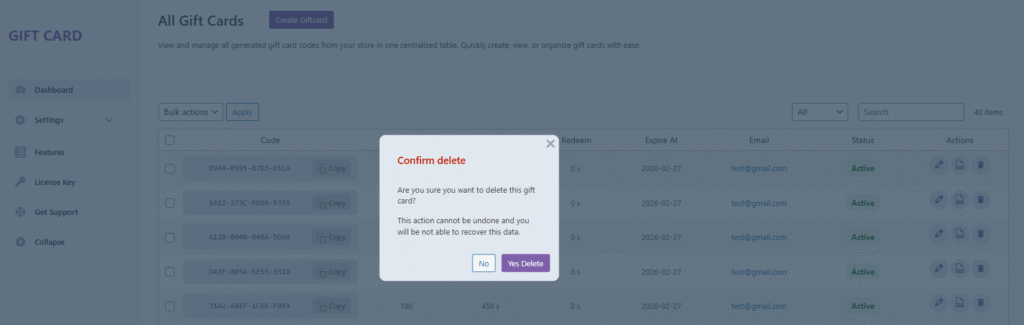
Click the Delete icon to permanently remove a gift card from your store. Once deleted, the gift card code can no longer be redeemed.
⚠️ Important: Deleting a gift card is not restorable. Make sure to confirm before proceeding.
🛠️ Why Use These Actions?
These quick tools help you:
- Instantly manage gift cards, edit, and delete
- Deactivate gift cards no longer in use
- Keep your gift card list clean and organized
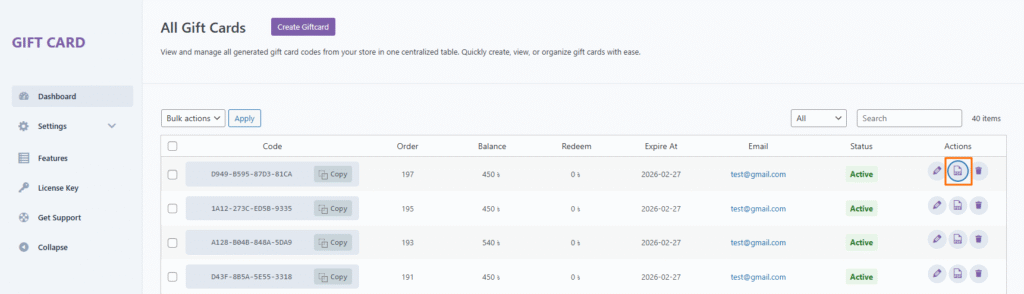
📄 Download PDF
Click the Download PDF icon to instantly generate and download the gift card as a PDF file. This allows you to save, print, or share the gift card whenever needed.
⚠️ Important: Ensure all gift card details are correct before downloading. If changes are needed, edit the gift card first and then download the updated PDF.