These settings allow you to customize the visual layout, container styling, image area, and shadow effects of the header section in the generated PDF gift card.
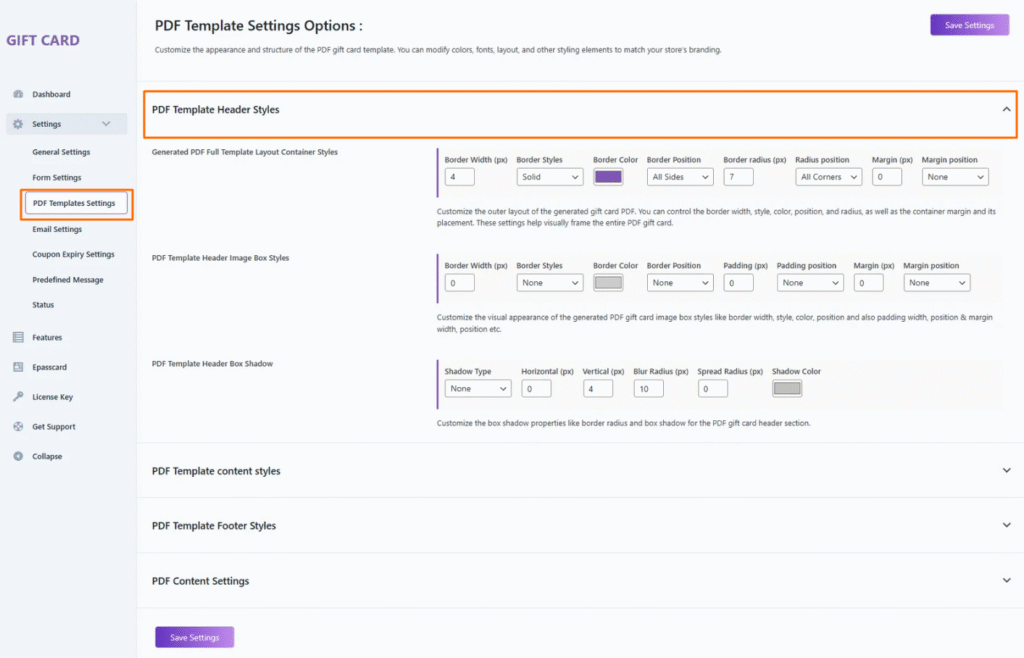
1. Generated PDF Full Template Layout Container Styles
Customize the outer layout container that wraps the entire gift card PDF design.
Options
- Border Width (px) — Sets the thickness of the outer border (default: 4px).
- Border Style — Choose the border type (solid, dashed, none, etc.).
- Border Color — Defines the color of the container border.
- Border Position — Apply borders to selected sides or all sides.
- Border Radius (px) — Rounds the corners of the full PDF layout container.
- Radius Position — Apply corner radius to selected or all corners.
- Margin (px) — Adds space outside the PDF layout container.
- Margin Position — Apply margin to specific sides or none.
2. PDF Template Header Image Box Styles
Configure the styling of the header image area inside the PDF—where your gift card image or banner is displayed.
Options
- Border Width (px) — Set the border thickness around the image box.
- Border Style — Choose a border type (none, solid, dashed, etc.).
- Border Color — Define the color of the image box border.
- Border Position — Apply borders to selected sides or none.
- Padding (px) — Add spacing inside the image box area.
- Padding Position — Choose which sides receive padding.
- Margin (px) — Set the space around the image box.
- Margin Position — Apply margin to selected sides or none.
3. PDF Template Header Box Shadow
Add depth and shadow effects to the PDF header section.
Options
- Shadow Type — Choose whether the header uses a shadow (none, outer, inset).
- Horizontal (px) — Adjusts the horizontal offset of the shadow.
- Vertical (px) — Adjusts the vertical offset of the shadow (default: 4px).
- Blur Radius (px) — Determines the softness of the shadow (default: 10px).
- Spread Radius (px) — Controls the size expansion of the shadow.
- Shadow Color — Defines the color of the shadow.
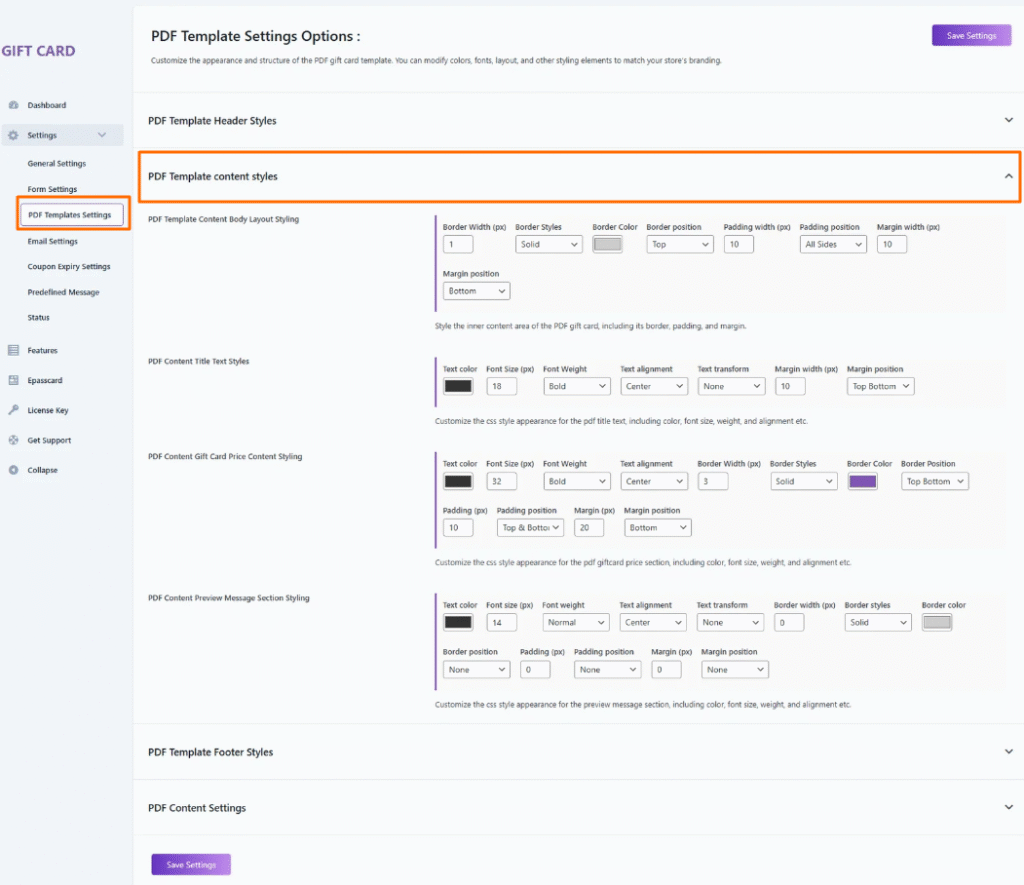
1. PDF Template Content Body Layout Styling
Customize the inner body layout of the PDF gift card.
Options
- Border Width (px) — Defines the thickness of the content border (default: 1px).
- Border Style — Select border type such as solid, dashed, etc.
- Border Color — Sets the color of the content border.
- Border Position — Apply borders to selected sides (top, bottom, etc.).
- Padding Width (px) — Adds internal spacing inside the content area.
- Padding Position — Apply padding to all sides or specific sides.
- Margin Width (px) — Sets spacing outside the content area.
- Margin Position — Choose where margin is applied (e.g., bottom).
2. PDF Content Title Text Styles
Customize the styling of the main title displayed in the PDF (e.g., “Gift Card”).
Options
- Text Color — Select the title color.
- Font Size (px) — Set the title size (default: 18px).
- Font Weight — Choose the title thickness (bold, normal, etc.).
- Text Alignment — Align the title (center, left, right).
- Text Transform — Modify casing (none, uppercase, lowercase).
- Margin Width (px) — Add spacing around the title.
- Margin Position — Choose which areas receive margin (top, bottom, etc.).
3. PDF Content Gift Card Price Content Styling
Style the pricing section that displays the gift card amount inside the PDF.
Options
- Text Color — Set the color for the price text.
- Font Size (px) — Adjust the price size (default: 32px).
- Font Weight — Select bold or other thickness options.
- Text Alignment — Align the price to the center, left, or right.
- Border Width (px) — Set the thickness of price section borders.
- Border Style — Choose border type (solid, dashed, etc.).
- Border Color — Define border color.
- Border Position — Apply border to top, bottom, or both.
- Padding (px) — Add internal spacing around the price area.
- Padding Position — Choose top/bottom or full padding.
- Margin (px) — Set outer spacing around the price section.
- Margin Position — Apply margin to bottom or other areas.
4. PDF Content Preview Message Section Styling
Adjust the appearance of the preview message section that may appear within the PDF.
Options
- Text Color — Select the text color for the preview message.
- Font Size (px) — Set the font size (default: 14px).
- Font Weight — Adjust the thickness of the preview text.
- Text Alignment — Align the preview message text.
- Text Transform — Control casing (none, uppercase, etc.).
- Border Width (px) — Set the preview message border width (0 if none).
- Border Style — Choose a border style.
- Border Color — Select border color.
- Border Position — Apply border to chosen sides or none.
- Padding (px) — Add internal spacing inside the section.
- Padding Position — Choose where padding applies.
- Margin (px) — Adjust spacing around the preview message area.
- Margin Position — Select position for the margin.

1. PDF Footer Text Styling
Configure the typography and alignment of the footer text displayed at the bottom of the PDF.
Options
- Text Color — Sets the color of the footer text.
- Font Size (px) — Adjusts the text size (default: 13px).
- Font Weight — Controls text thickness (normal, bold, etc.).
- Text Alignment — Aligns the footer text (center, left, right).
- Text Transform — Modifies text casing (none, uppercase, lowercase, capitalize).
2. PDF Footer Border Styling
Add or modify borders for the footer section.
Options
- Width (px) — Defines the border thickness (default: 1px).
- Border Style — Select the border type (solid, dashed, etc.).
- Border Color — Sets the border color.
- Border Position — Apply the border to specific sides (such as top) or all sides.
3. PDF Footer Spacing (Padding & Margin)
Control the spacing inside and around the footer text block.
Options
- Padding (px) — Adds internal spacing around the footer text (default: 10px).
- Padding Position — Apply padding to specific sides or all sides.
- Margin (px) — Sets external spacing outside the footer section (default: 10px).
- Margin Position — Apply margin to selected sides such as bottom.