To install the Gift Card for WooCommerce plugin, you only need to follow the usual process, just like you can install any other plugin. You can follow the following steps:
You need to install the WooCommerce plugin first to use “Gift Card for WooCommerce” and if you want to use “Gift Card for WooCommerce Pro” then you need to remove the free plugin.
Install The Free Version
The free version of Gift Card for WooCommerce is available on the WordPress org. To install it, navigate to your WordPress dashboard, click on Plugins → Add New, and search for “Gift Card for WooCommerce”.
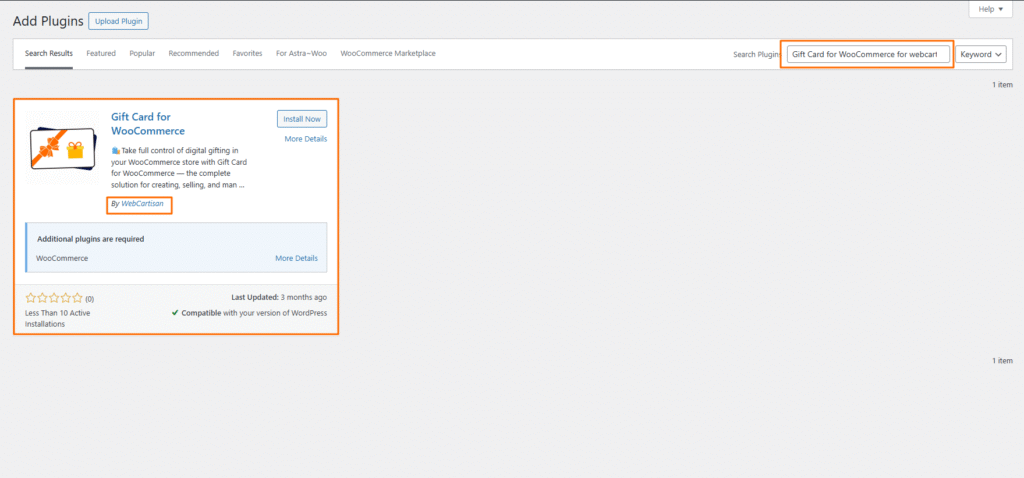
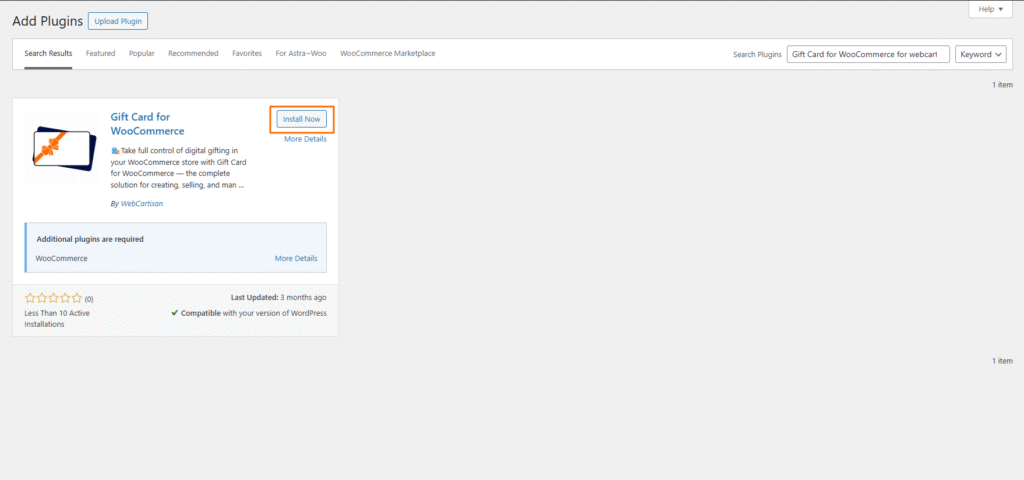
Now, click the “Install Now” button from your WordPress add plugins dashboard to begin the installation process.
Install The Premium Version
Before installing the premium version of the Gift Card for WooCommerce plugin, make sure to first delete the free version. Once it’s removed, you can proceed with installing the premium version.
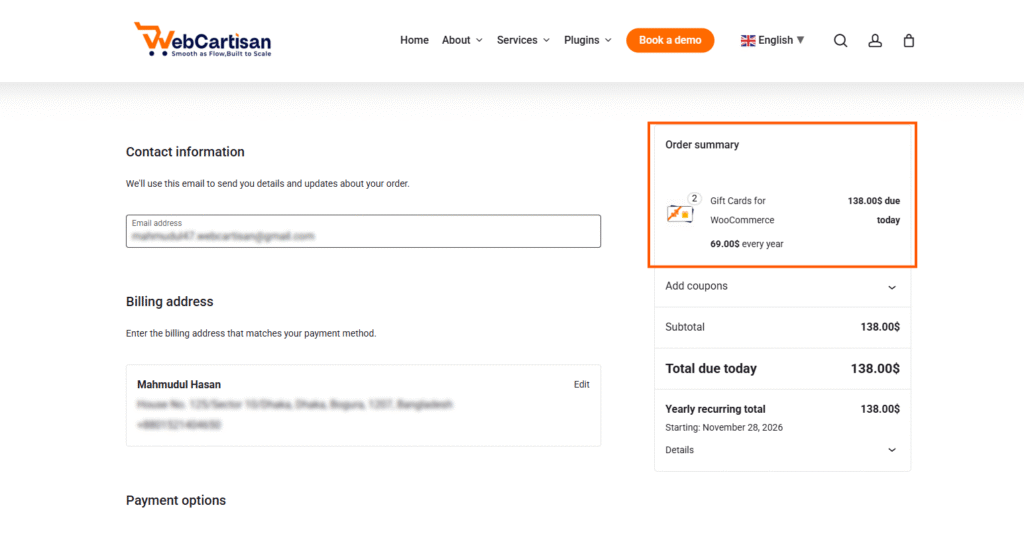
The Pro version of the “Gift Card for WooCommerce” plugin is a zip file. After purchasing the Pro version you will get a download button in your my account dashboard, and also you will get this button on the thank you page.
- Go to your WordPress website Dashboard
- Navigate to Plugins > Add New
- Now check the options on the top right beside “Add Plugins” for the “Upload Plugins” option. Click on this.
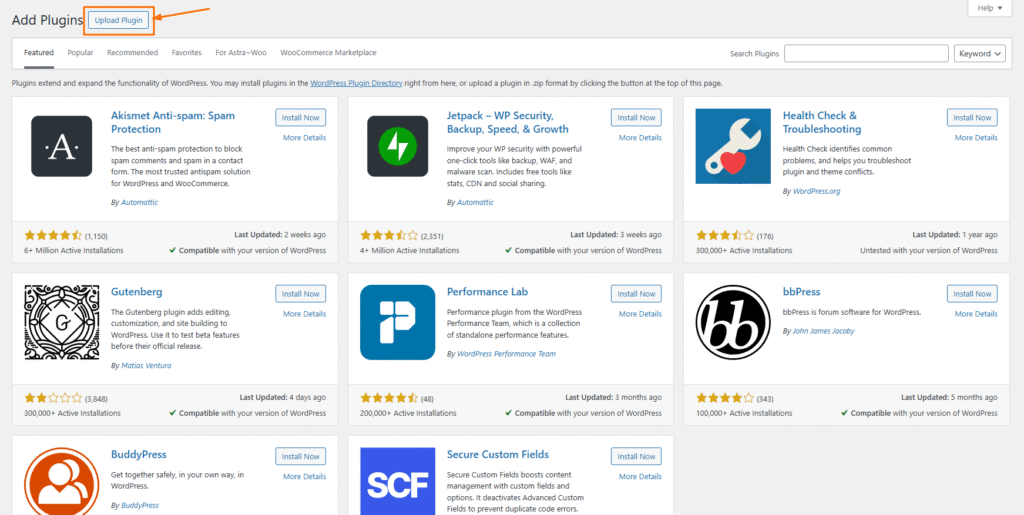
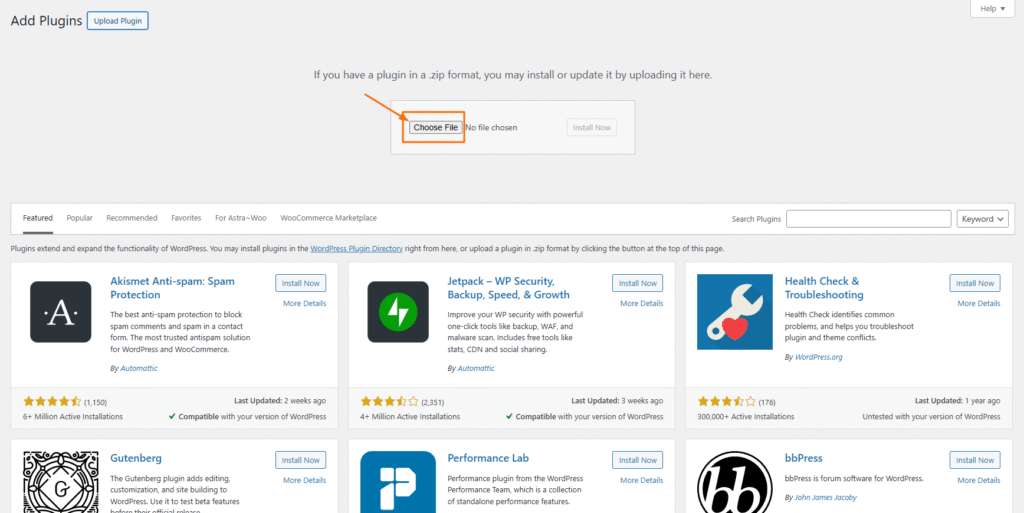
Once you click the “Upload Plugin” button, you will get the plugin upload option from your computer. Now select the “gift-card-wooxperto-llc-pro.zip” file from your computer and click on the “Install Now” button
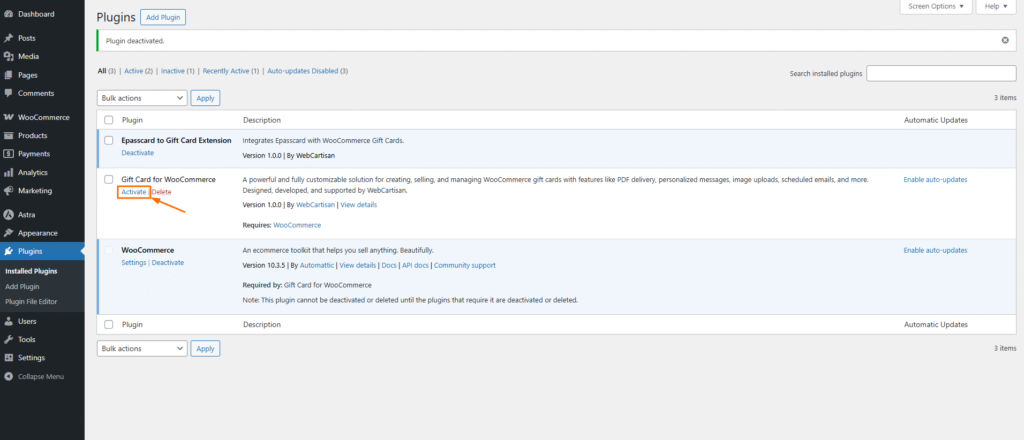
After the installation, you need to activate this plugin.
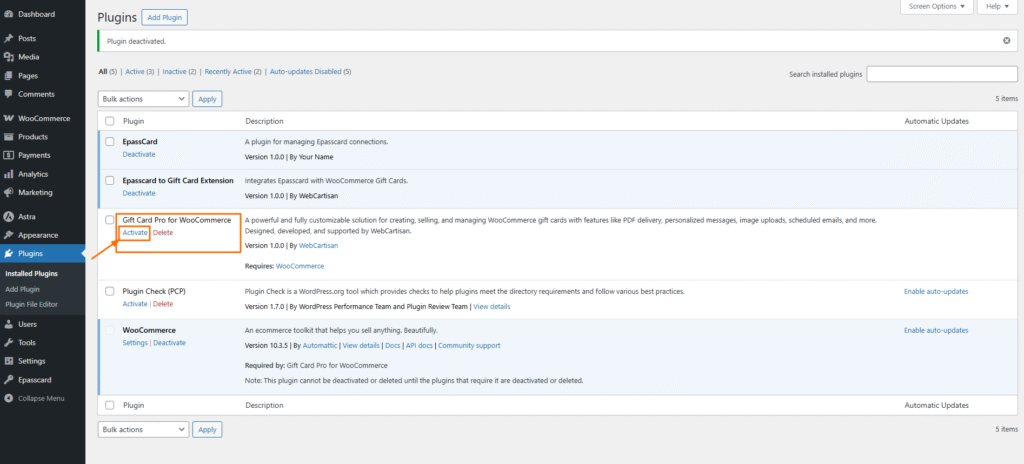
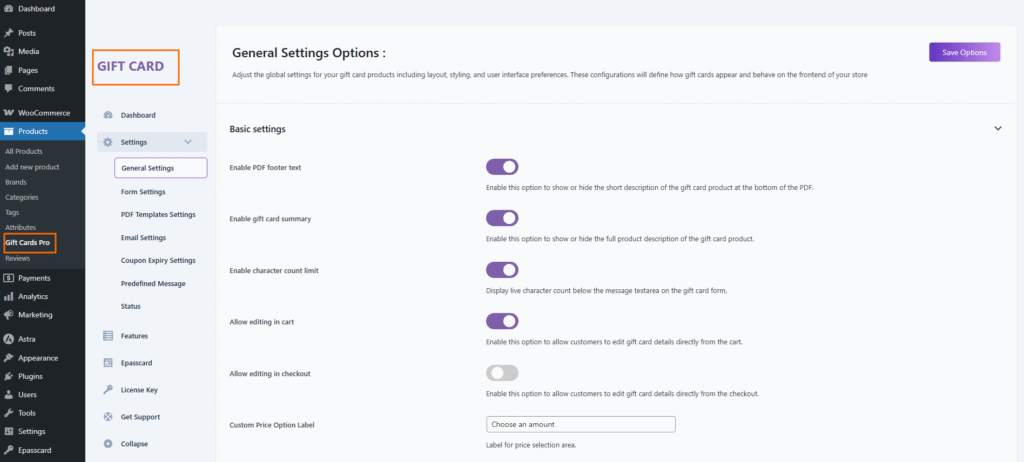
After active, you need to click the settings button then you can go to the Gift Card for WooCommerce plugin setting page
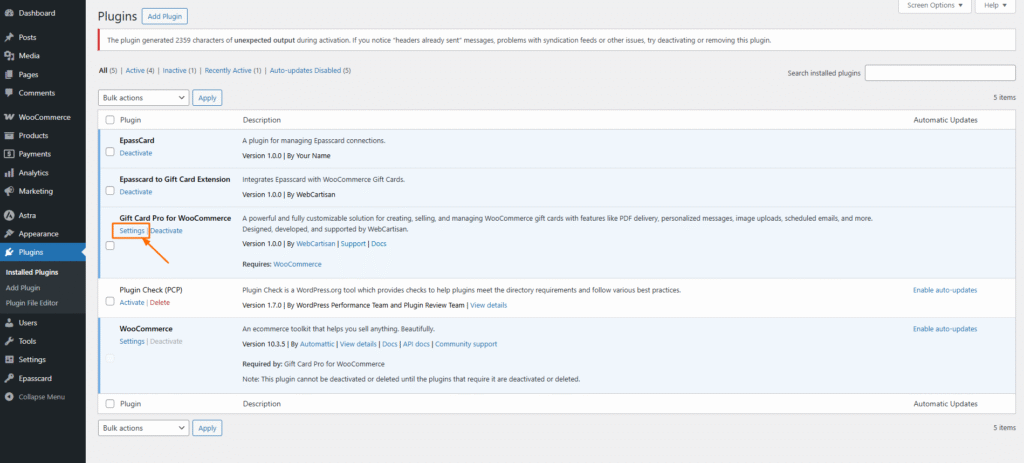
This setting is included in the product menu as a submenu