1) Winner Reveal Page: [wxg_winner_reveal]

Configuration Required: Please designate a Winner Reveal Page within the Winner Settings menu. The shortcode remains inactive until a destination page is assigned.
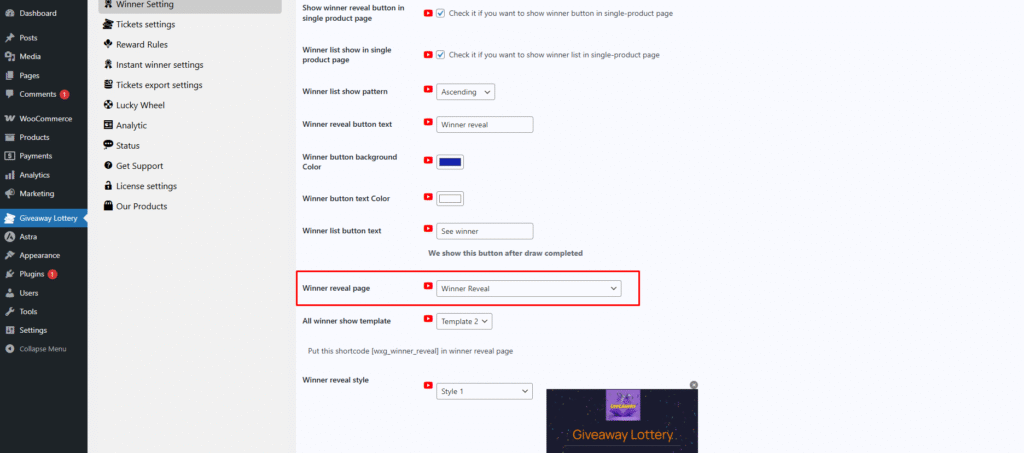
Now, pick any page on your website where you want the winners to appear. Open that page in your editor and add the shortcode there. You can use a new page or one you’ve already created!
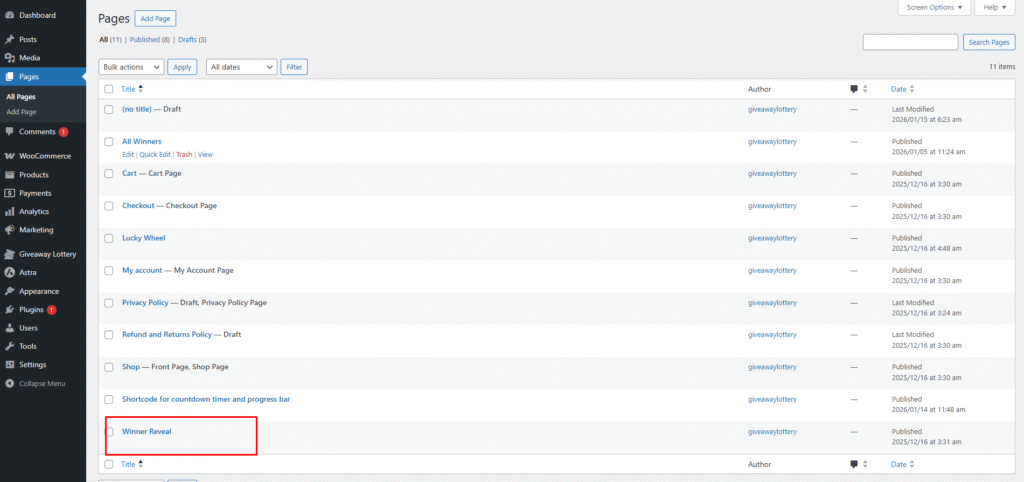
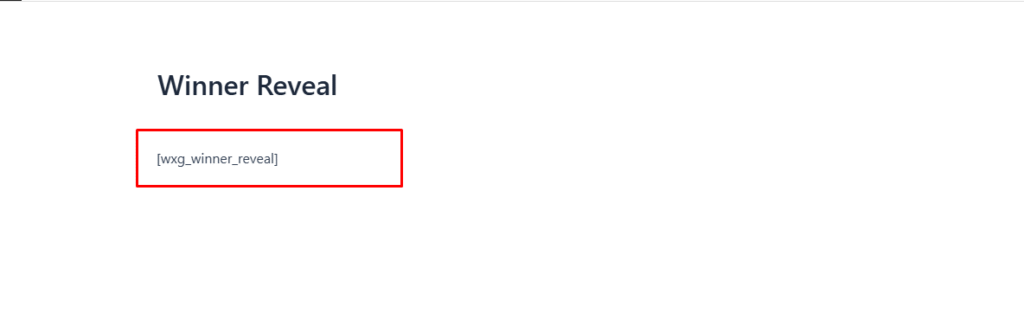
Insert the shortcode into the body of your selected page. Ensure it is placed exactly where you want the winner information to appear, then click Update to apply the changes.
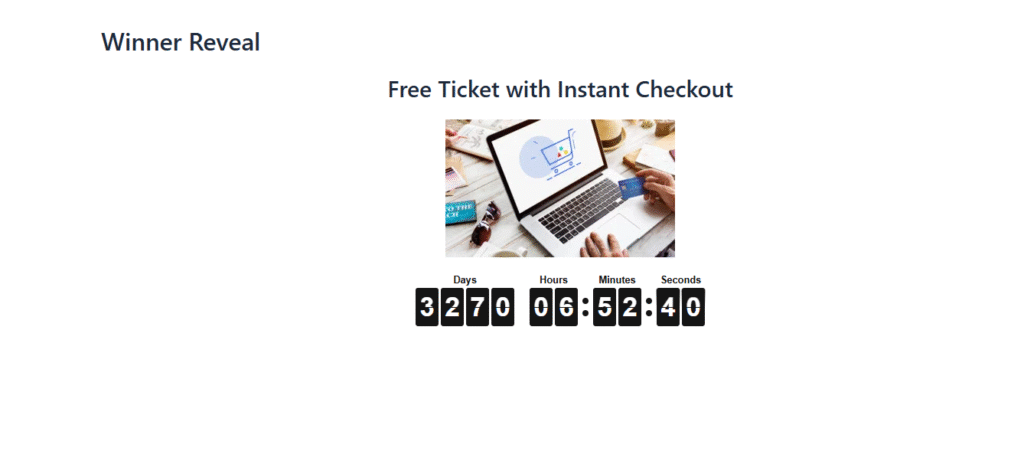
This is the live frontend view of your page. Please note that the layout is dynamic: once the countdown concludes, the interface will transition to a new design specifically styled for the winner announcement.
2) All Winner List: [wxgiveaway_winner_list]

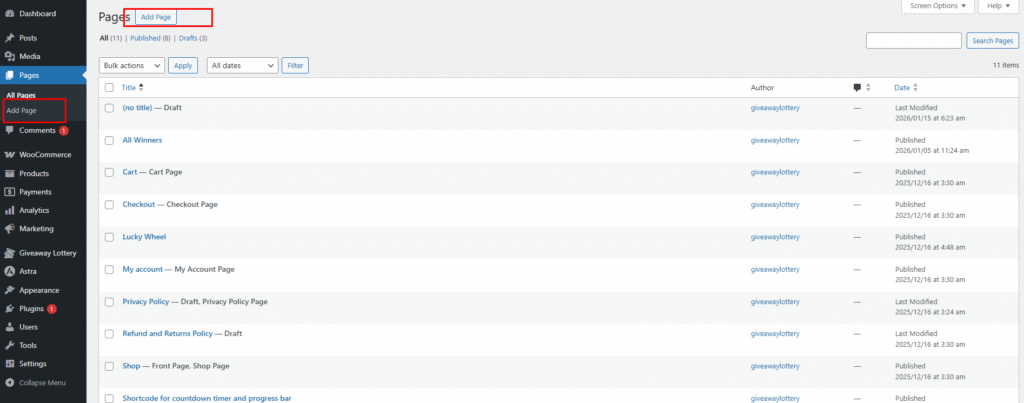
Here you need to create new page, so click add new pageGenerate a new page via the "Add New" menu and embed the [wxgiveaway_winner_list] shortcode to output the complete winners' directory on the frontend.
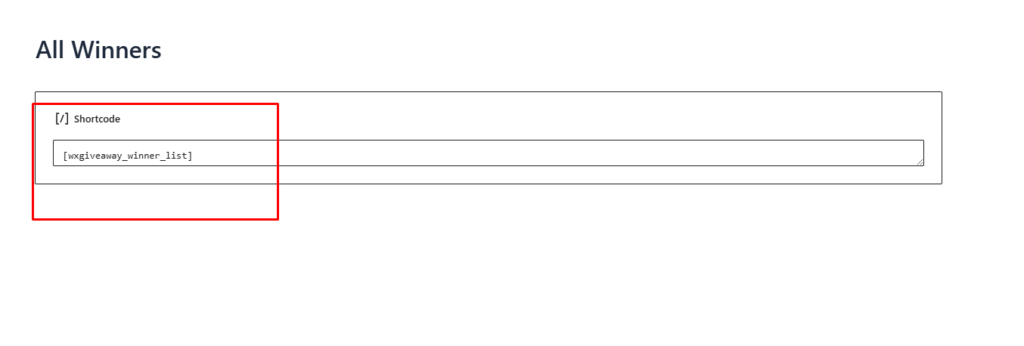
Access the page editor and insert the shortcode into the content area. This will serve as the container for the winner list data on your live site.
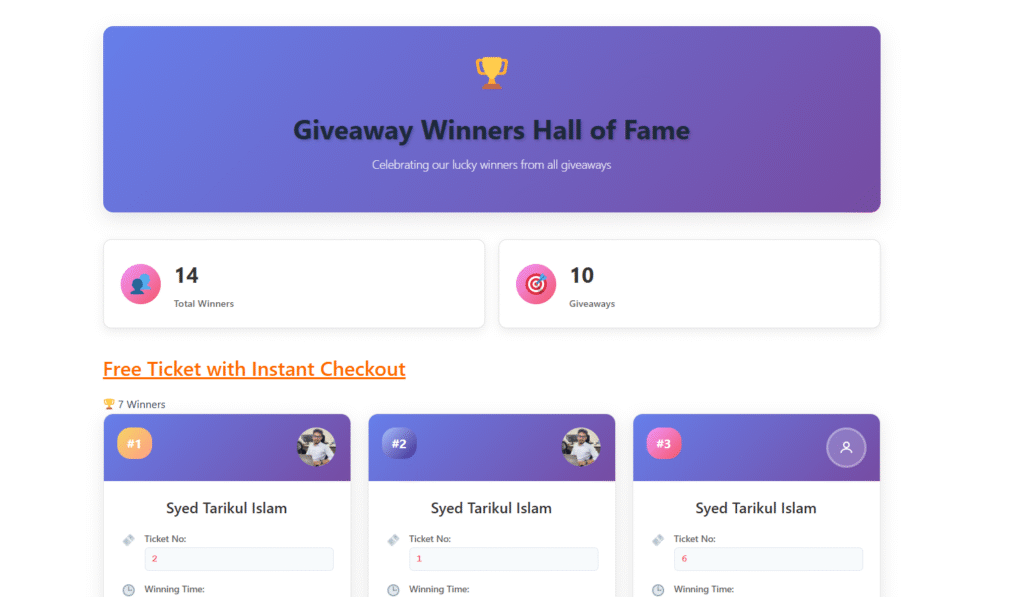
The images below demonstrate the final frontend output. Use these as a reference to ensure your layout and shortcode are rendering correctly.
3) Specific Product Winner List: [wxgiveaway_single_product_winner_list product_id=”0″]
Note: Before using this shortcode, you must provide a valid product ID.
In the edit page, insert this shortcode. Note that the product_id attribute is mandatory; you must update product_id="0" with the specific ID of the product you wish to display.
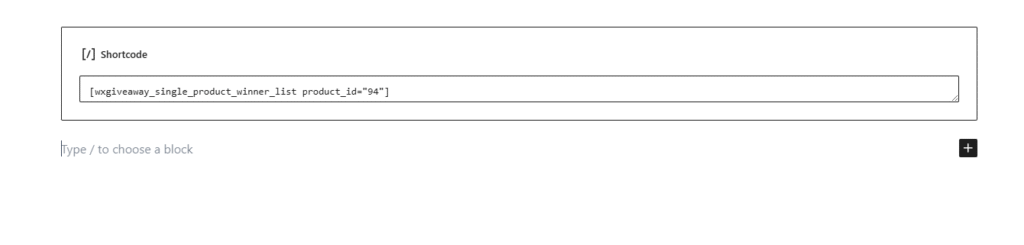
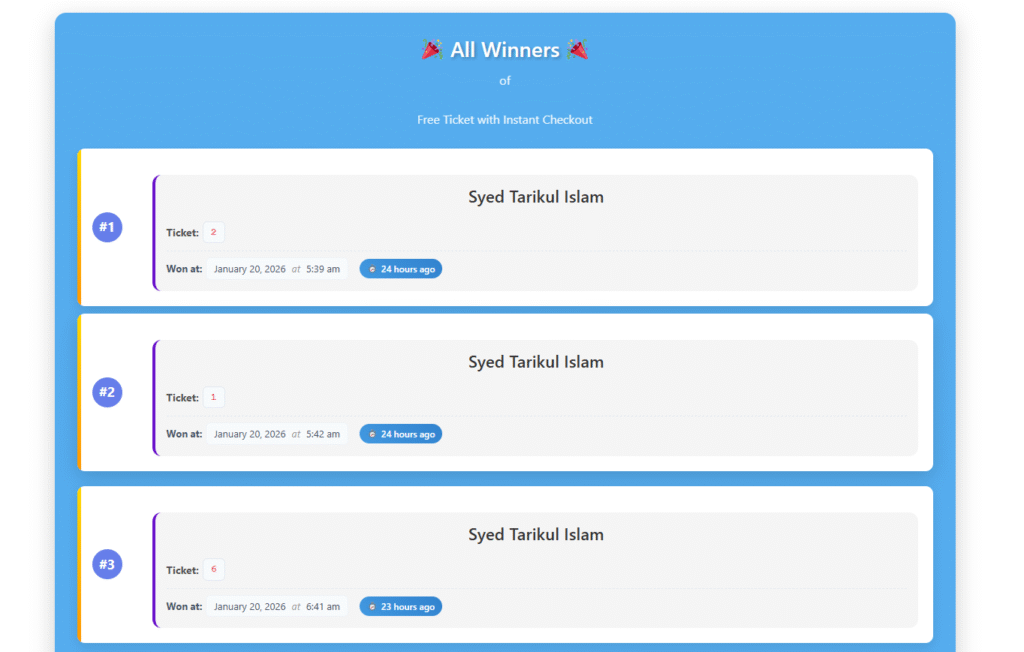
The image below illustrates the frontend output for a specific product. This view ensures that winning results are clearly associated with the correct inventory item.
4) Countdown Timer Shortcode: [wxgiveaway_countdown_timer product_id=”0″]
Note: Before using this shortcode, you must provide a valid product ID.
5) Range Slider Shortcode: [wxgiveaway_range_slider product_id=”0″]
Note: Before using this shortcode, you must provide a valid product ID.
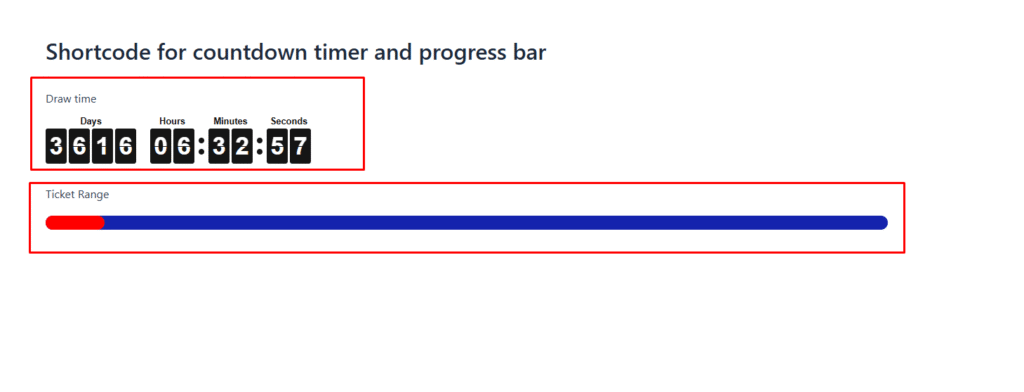
In the edit page, insert this shortcode to display a live countdown and range slider for a specific product. Please ensure you replace the product_id="0" placeholder with a valid ID to link the timer and range slider to the correct giveaway.
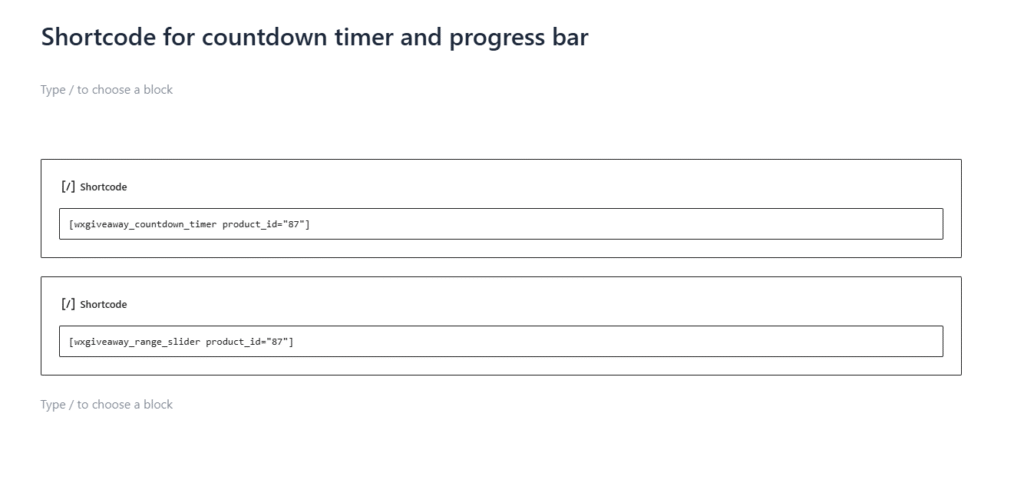
The image below represents the final frontend rendering of the range slider and countdown timer.
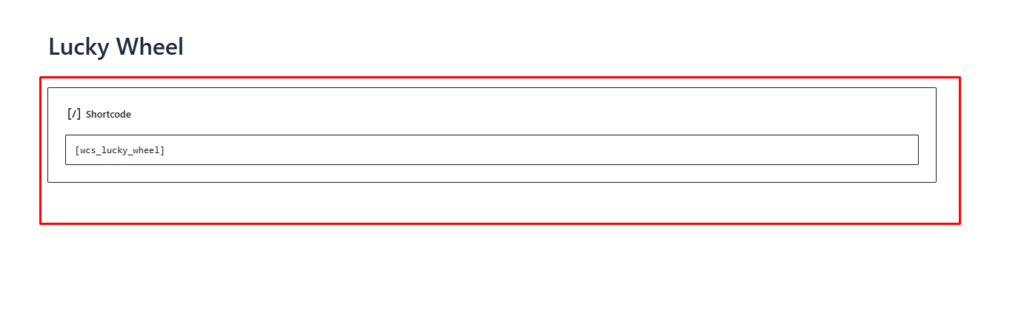
6) Lucky Wheel: [wcs_lucky_wheel]
Insert the [wcs_lucky_wheel] shortcode within the edit page. This will integrate the interactive wheel component directly onto that page.
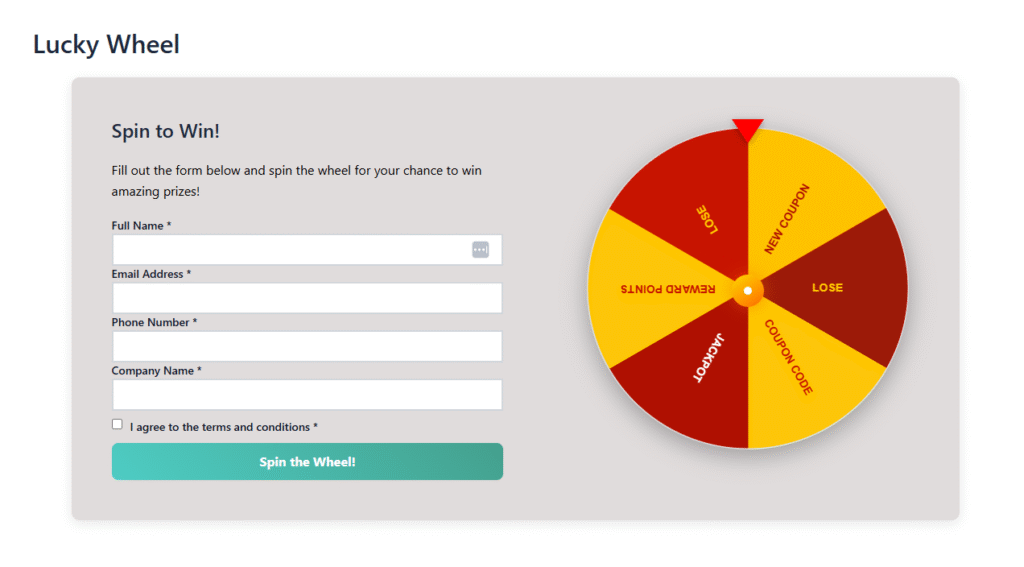
The image below displays the live frontend implementation of the Lucky Wheel. Use this as a guide to ensure the component is properly positioned and styled within your page layout.