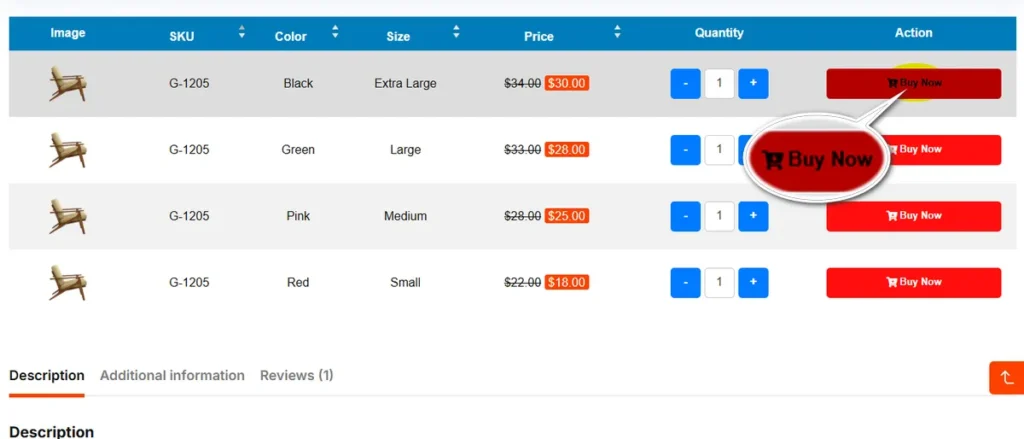
The default “Add to cart” text might not always fit your store’s tone.
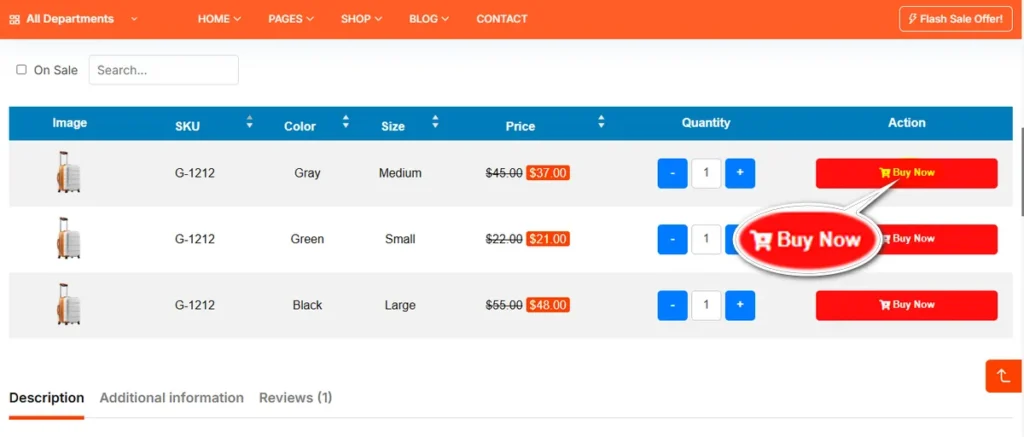
This field allows you to rewrite the call-to-action text on the button. You might change it to “Buy Now,” “Select,” or “Grab Yours” to better align with your marketing strategy and improve click-through rates on your Variation Swatches layouts.
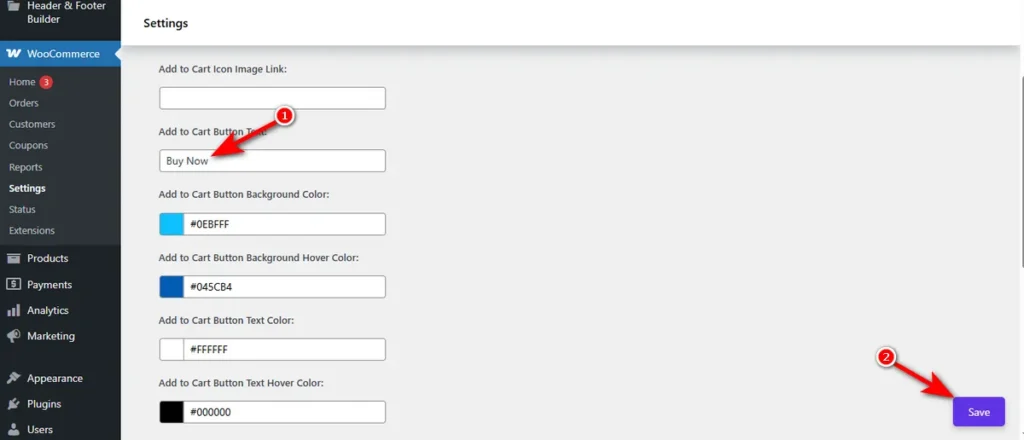
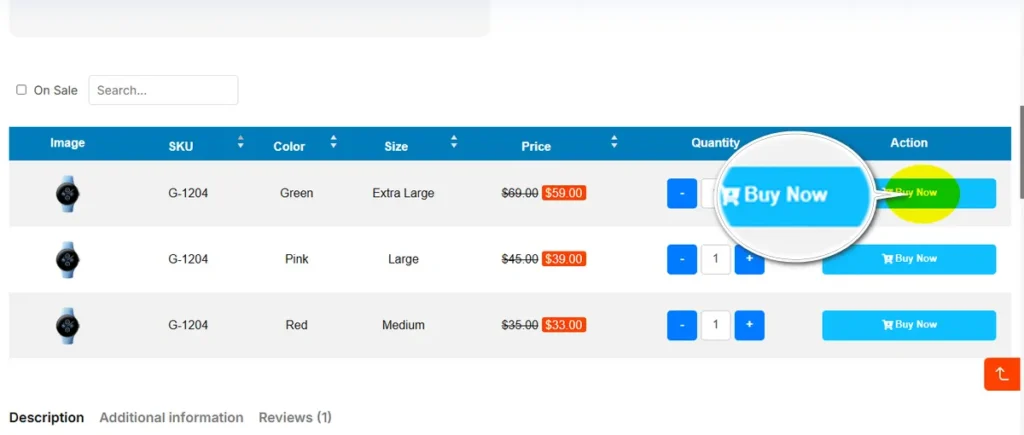
Once you change the “Add to Cart” text, you can see the effect on a variation table’s product detail page.
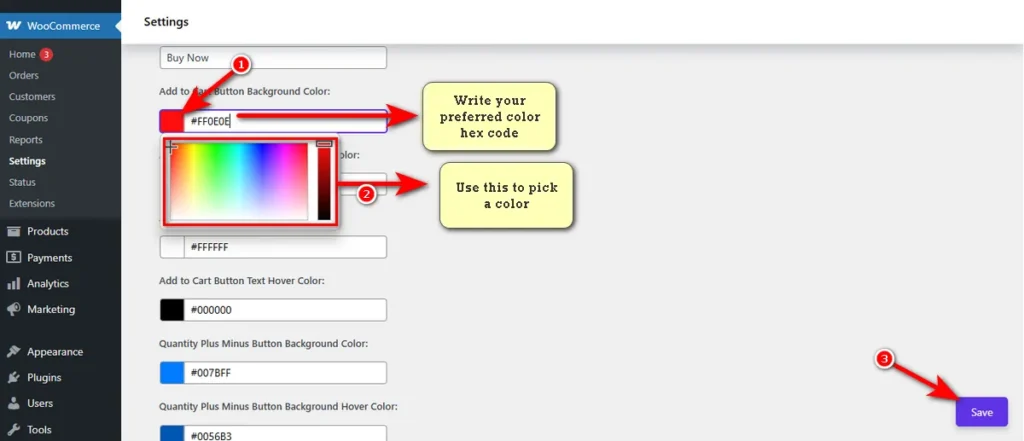
Add to Cart Button Background Color
Color is a key part of brand recognition.
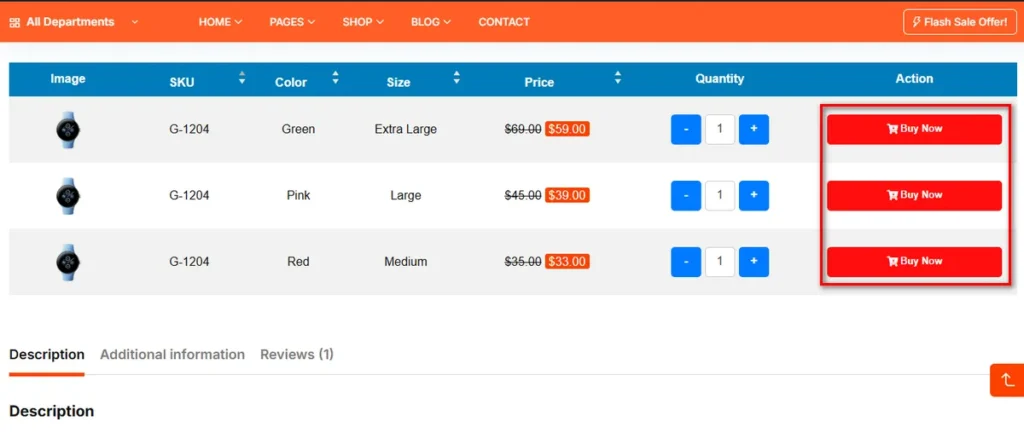
This color picker allows you to set the primary background color for the “Add to Cart” button in its normal state.
Choose a color that stands out from the rest of your page content to draw the user’s eye immediately to the conversion point.
Let’s now view the changes in the variation table of a variable product’s detail page.
Add to Cart Button Background Hover Color
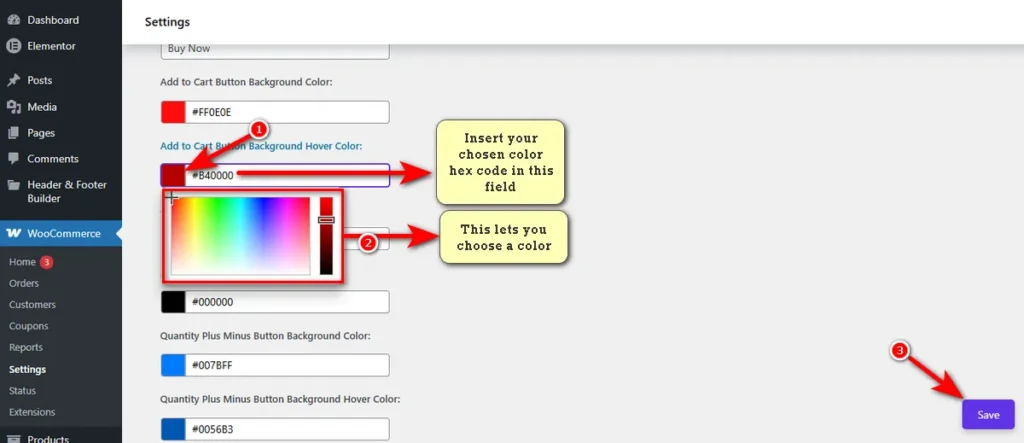
Interactive elements should respond when a user engages with them.
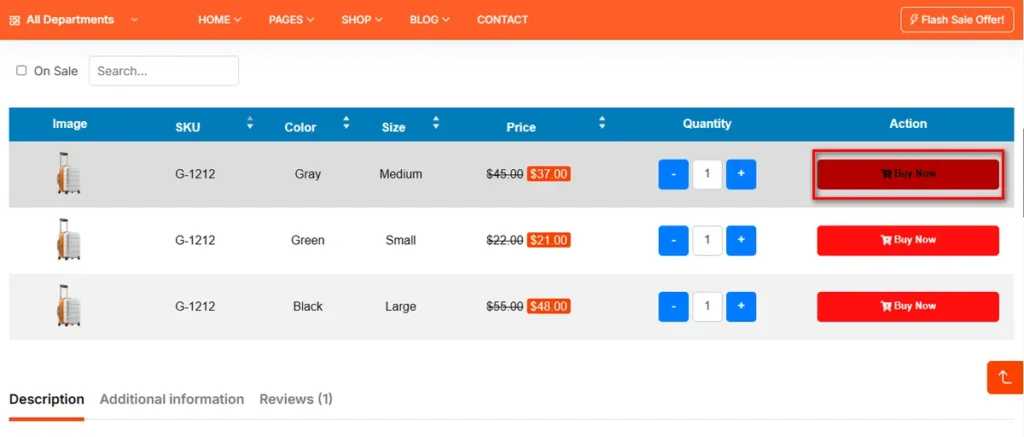
This setting defines the background color of the Add to Cart button when a customer hovers their mouse cursor over it.
Here are the changes you can witness on a variation table of a variable product’s detail page.
Add to Cart Button Text Color
Legibility is crucial for conversions.
Use this option to set the color of the text inside the “Add to Cart” button.
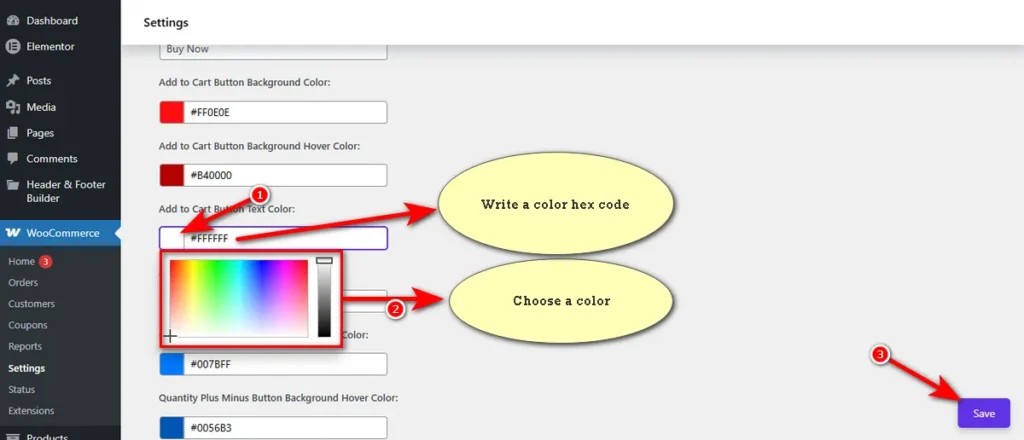
Ensure there is high contrast between this text color and your chosen background color of the Add to Cart button so the label is easy to read on mobile devices or smaller carousel screens.
Add to Cart Button Text Hover Color
Just like the Add to Cart button text background, the Add to Cart button text hover color can change on hover.
This setting allows you to define a specific button text hover color that appears when the user interacts with the button.
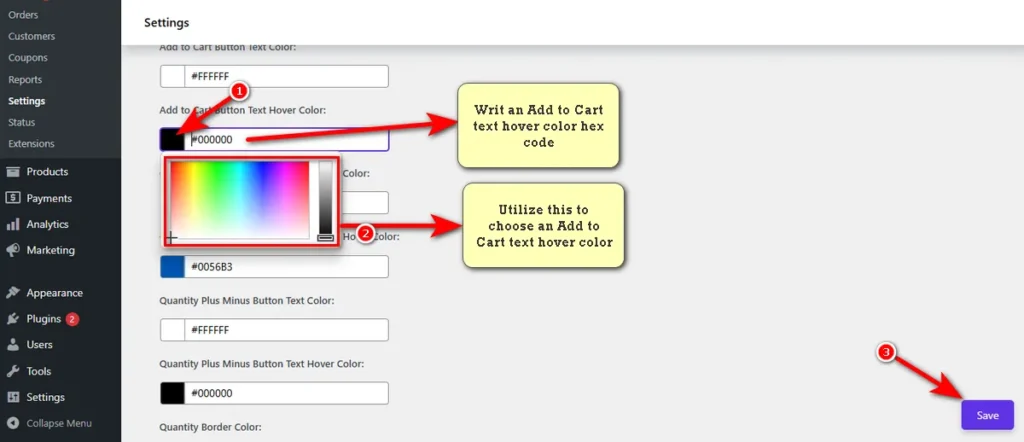
Let’s now view the changes you make in the Add to Cart button text hover color.